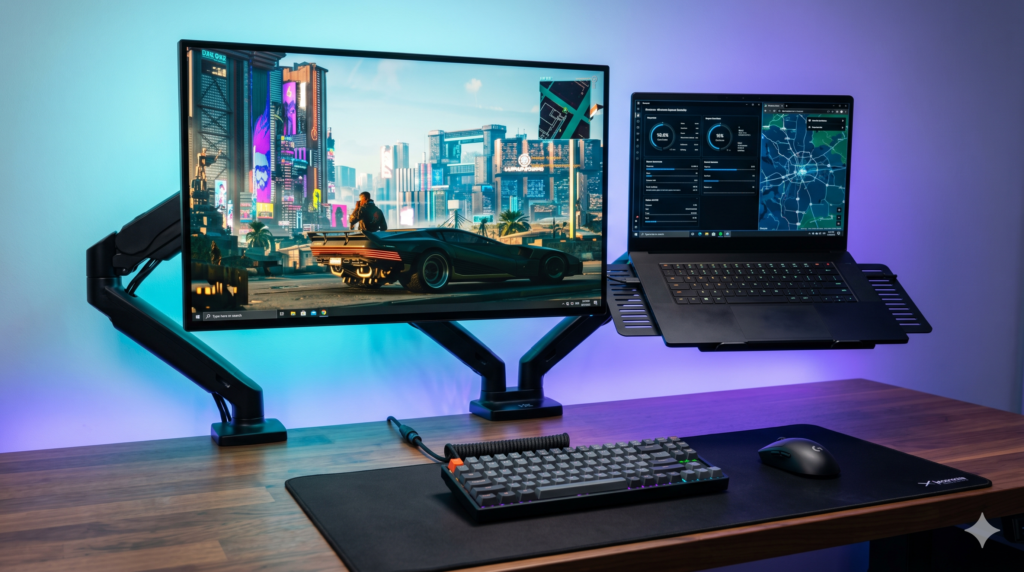
How to Perfectly Align Your Gaming Laptop Screen with a 27-inch Monitor
A gaming laptop second screen setup is the ultimate productivity hack. You plug your high-powered laptop into a massive 27-inch desktop monitor to play Call of Duty or edit video, leaving the laptop open on your desk to act as a dedicated dashboard for Discord, Spotify, or OBS Studio.
But executing this setup often reveals a miserable physical reality. The 27-inch monitor sits high up at eye level. The 15.6-inch laptop screen sits completely flat on the wood. Every time you check chat, you have to crane your neck violently downward. Worse, when you try to drag a window from the big screen to the small screen, your mouse cursor hits an “invisible wall” and gets completely stuck. Your screens are physically and digitally mismatched.
At Desk & Console, we treat battlestation alignment as spatial engineering. To achieve the aesthetic dream—a “floating” laptop that aligns seamlessly with your main monitor, freeing up massive desk space for your XL mousepad—you must solve both a hardware lift problem and a Windows software scaling puzzle. Here is the ultimate technical blueprint.
The Geometry of Dual-Screen Alignment
Before you buy hardware, you have to decide on your visual architecture. When aligning a small 15.6″ or 17″ laptop screen next to a massive 27-inch monitor, you cannot align them perfectly on all sides. You must choose one of two geometric alignments:
📐 1. Center-Line Alignment (Recommended for Ergonomics)
This is the gold standard for preventing neck strain. You elevate the laptop so that the horizontal center of the laptop screen perfectly matches the horizontal center of the 27-inch monitor. Your eyes pan left and right effortlessly across a flat horizon. This requires the laptop to be elevated significantly high off the desk.
📐 2. Bottom-Edge Alignment (The Aesthetic Choice)
In this setup, you elevate the laptop so that the bottom bezel of the laptop screen matches the bottom bezel of the 27-inch monitor. This creates a clean, continuous visual line across the bottom of your setup, but requires you to look slightly down when glancing at the laptop.
Dual Arm vs. Ultra-Tall Riser: Which Setup is Right for You?
To physically achieve the 8 to 10 inches of elevation required to match a 27-inch monitor, you must go one of two routes: A pneumatic dual monitor arm with a laptop tray, or an independent ultra-tall riser. Both require heavy-duty hardware capable of holding a 6-to-8 pound gaming laptop without sagging.
| Setup Architecture | Dual Gas-Spring Monitor Arm | Ultra-Tall Freestanding Riser |
|---|---|---|
| Desk Space Cleared | 100% (Floating completely off desk) | Moderate (Riser base sits on desk) |
| Alignment Precision | Flawless (Millimeter gas-spring adjustments) | Good (Manual hinge adjustments) |
| Installation Difficulty | High (Requires desk clamping and tensioning) | Zero (Just place it on the desk) |
| Monitor Requirements | Requires your monitor to be VESA compatible | Works with factory monitor stands |
The Precision Mounting Arsenal
To lift a heavy gaming laptop almost a foot into the air, you cannot use cheap plastic. You need heavy-duty steel and aluminum joints capable of supporting extreme asymmetrical weight without dumping your gear onto the desk.
1. The ‘Floating’ Hub: HUANUO Dual Monitor Arm 🏆 Best Dual Setup
If you want the ultimate, zero-clutter battlestation where both your 27-inch monitor and your gaming laptop float magically in the air, a dual monitor arm with a laptop tray is the required foundation.
It clamps securely to the back of your desk, freeing up massive amounts of space for an extended mousepad. You bolt your 27-inch monitor to the right arm, and your VESA laptop tray to the left arm. The gas springs allow you to make micro-millimeter adjustments to the height, ensuring the laptop screen perfectly aligns with the center-line of the desktop monitor.
Check Price on Amazon2. The Airflow Requirement: WALI Ventilated VESA Tray
A dual monitor arm doesn’t come with a laptop holder; you must buy a specialized tray that bolts onto the VESA plate. The WALI Ventilated VESA Laptop Tray is universally trusted in the PC gaming community.
Beyond its thermal superiority, it solves the “thickness” issue. Gaming laptops are significantly thicker than MacBooks. Standard trays have tiny front lips that allow thick laptops to slide right over the edge. The WALI tray features deep, adjustable front retaining clips that aggressively hook over the front chassis of heavy 17-inch gaming laptops, locking them safely in the air even if you tilt the tray aggressively toward your face.
Check Price on Amazon3. The No-Mount Alternative: Besign LS10 Ultra-Tall Stand
Not everyone can use a desk-clamp monitor arm (especially if you have a fragile glass desk). If you are keeping your 27-inch monitor on its factory stand, you need the Besign LS10 Ergonomic Stand.
Built from thick, CNC-milled aluminum, the friction hinges on this stand are incredibly stiff. This stiffness ensures that a heavy 6-pound gaming laptop will not slowly crush the stand down over time. You can place your 15.6-inch laptop on it and elevate it high into the air until it aligns perfectly beside your 27-inch screen. The void created beneath the stand is the perfect place to hide a Thunderbolt dock or store an audio interface.
Check Price on Amazon4. The Routing Tether: Silkland DP 1.4 to USB-C Cable
Do not let ugly cables ruin the illusion of your floating battlestation. If you are using a modern gaming laptop, you want to bypass standard HDMI and run your 27-inch 144Hz monitor directly from your laptop’s USB-C (DisplayPort Alt Mode) port to access maximum G-Sync performance.
The Silkland VESA Certified USB-C to DisplayPort 1.4 Cable is a mandatory cart-stuffer. Because it is 6 feet long and wrapped in a premium braided sleeve, you can run the cable out of your laptop, straight down the plastic cable-routing channels built into the monitor arm, and into the back of your 27-inch monitor. The connection becomes completely invisible.
Check Price on AmazonStep-by-Step Windows Scaling Guide (Fix the Mouse Trap)
You bought the hardware. Your screens are physically aligned perfectly in the real world. But when you try to move your mouse from your 27-inch monitor to your laptop, the cursor gets “stuck” on the edge of the screen and refuses to cross over. Here is the technical software fix.
Understand the Pixel Wall
If your 15.6″ laptop screen is 1080p and your 27-inch monitor is 1440p or 4K, Windows views the 4K monitor as physically “taller” in its digital layout. If you try to drag your mouse across the top-right corner of the 1080p screen, it hits a digital wall because there are no matching pixels on the other side. You must align their digital centers.
Open Windows Display Settings
Right-click anywhere on your desktop background and select “Display Settings”. At the top of the menu, you will see two numbered rectangles (representing your laptop and your 27-inch monitor).
Execute the Center-Line Drag
Click and hold the smaller rectangle (your laptop). Physically drag it up or down until the horizontal center of the small box perfectly aligns with the horizontal center of the large box. Click “Apply.” Now, your mouse cursor will pass smoothly through the exact center of the screens, perfectly mirroring the physical geometry you built with your monitor arm.
Placing a laptop flat on a desk next to a massive monitor is a massive ergonomic failure. By investing in the pneumatic precision of the HUANUO Dual Monitor Arm paired with a WALI VESA Tray, you instantly cure “Tech Neck,” ensure flawless digital mouse movement, and reclaim 100% of your desk space for an uncompromised gaming experience.
Frequently Asked Questions (FAQ)
How do I fix my mouse cursor getting stuck between screens?
If your mouse cursor hits an invisible wall when moving between screens, your Windows digital layout does not match your physical layout. Right-click your desktop, go to Display Settings, and look at the numbered monitor boxes. Physically click and drag the numbered boxes up or down to align their center-lines, then hit Apply. Your mouse will now glide flawlessly between the displays.
Can I use a dual monitor arm for a heavy gaming laptop?
Yes, but you must strictly check the weight capacity per arm. A 15.6 or 17-inch gaming laptop can weigh 6 to 8 lbs, and a solid steel VESA tray weighs an additional 3 lbs. You must buy a heavy-duty gas-spring dual arm rated for at least 15+ lbs per arm, otherwise the pneumatic cylinder will fail and the laptop tray will sag down to your desk.
Will placing my gaming laptop on a VESA tray cause it to overheat?
If you use a solid sheet-metal tray, yes, because you will block the laptop’s bottom intake fans. You must buy a specialized “ventilated” VESA laptop tray with large cooling cutouts. Floating the laptop in ambient room air on a ventilated tray actually improves thermal performance and drops CPU temps compared to laying it flat on an insulating wooden desk.