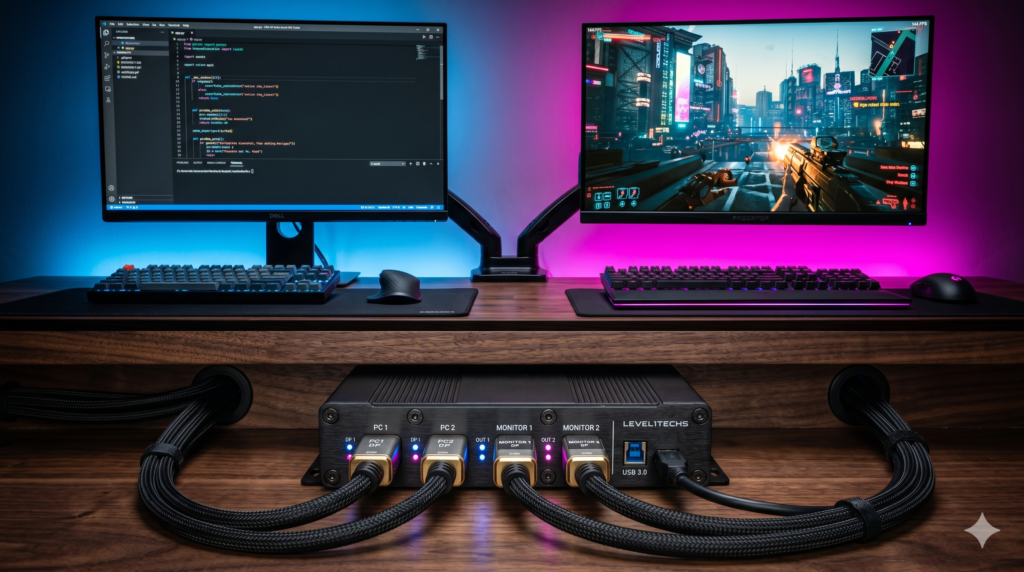
The Best KVM Switches for Sharing a 144Hz Monitor Between Work and Gaming Laptops
Balancing professional workloads with competitive gaming requires an efficient dual-system setup. Sharing a high-refresh monitor, mechanical keyboard, and precision mouse between a corporate laptop and an esports rig normally involves constant cable swapping. Implementing a reliable KVM switch automates this transition with a single button press.
Choosing the right routing hardware requires evaluating video bandwidth protocols and USB polling integrity. Cheap office KVM switches often bottleneck video refresh rates and introduce software-based polling lag that ruins competitive aiming. Ensuring pristine signal transmission starts with robust peripheral connectivity, such as pairing your routing hub with the best USB-C docking stations for single-cable laptop and gaming setups or utilizing best Thunderbolt 4 docks for gaming laptops 144Hz dual monitor setups to manage display feeds.
Furthermore, optimizing your physical workspace layout and desk accessories—as explored in our guides on best budget gaming accessories under 25 dollars to clean up your setup and essential console accessories charging docks storage mounts—ensures that heavy KVM switch boxes and thick DisplayPort cables remain neatly concealed while managing power lines using how to hide massive gaming laptop power bricks under your desk.
Technical Architecture: Bandwidth Protocols & EDID Emulation
1. DisplayPort 1.4 Bandwidth
Pushing 1440p at 144Hz or 4K at 144Hz requires a massive uncompressed data pipeline (up to 32.4 Gbps). Premium KVM units utilize DisplayPort 1.4 hardware passthrough rather than compressed HDMI 2.0 conversion.
2. Hardware EDID Emulation
Switching inputs on basic KVMs severs the monitor connection, forcing Windows to rearrange open application windows. Built-in EDID chips send constant display handshake signals to inactive PCs to preserve desktop layouts.
3. Raw USB 3.0 Passthrough
Competitive gaming mice require stable 1000Hz polling rates. High-end KVMs utilize dedicated hardware USB hubs rather than software emulation, preventing input latency during rapid mouse movements.
Curated Setup Guide & Technical Spec Comparison
| KVM Switch Model | Display Ports | Max Bandwidth & Refresh | USB Hub & Polling Rate | Best-For Scenario |
|---|---|---|---|---|
| TESmart DP 1.4 Dual KVM | Dual DisplayPort 1.4 In/Out | Dual 1440p @ 144Hz / 4K @ 60Hz | USB 3.0 Passthrough (1000Hz) | Dual-monitor workstation and gaming desktop consolidation |
| AV Access 8K DP 1.4 KVM | Single DisplayPort 1.4 | 32.4 Gbps (1440p @ 240Hz / 4K @ 144Hz) | USB 3.0 Hardware Hub | Single high-refresh ultrawide or 4K gaming monitor setups |
| Sabrent USB-C KVM | USB-C Alt Mode / Thunderbolt | 4K @ 60Hz / 1440p @ 144Hz with PD | USB 3.2 Gen 2 Data Sharing | Sharing peripherals between two modern laptops with Power Delivery |
| UGREEN USB 3.0 Switch | Peripheral-Only (No Video) | N/A (Video Bypassed via Monitor Inputs) | 4-Port USB 3.0 Sharing (5 Gbps) | Budget setups sharing mouse and keyboard while bypassing video KVM cost |
TESmart DisplayPort 1.4 Dual Monitor KVM Switch
When managing a complex dual-monitor workstation alongside an esports desktop, the TESmart DisplayPort 1.4 Dual Monitor KVM Switch provides uncompromising multi-display routing. Constructed in a heavy-duty metal chassis, this switch eliminates the need to crawl under your desk or manage dual sets of keyboards and mice.
The dual DisplayPort 1.4 matrix ensures both screens operate at full refresh rates without color sub-sampling or compression artifacts. Integrated EDID emulation prevents Windows from shuffling your open applications when toggling between systems, keeping your workflow intact.
- Dual DisplayPort 1.4 architecture supports two high-refresh monitors simultaneously
- Active EDID emulation prevents window resizing and rearrangement during switching
- Dedicated USB 3.0 hardware ports preserve 1000Hz gaming mouse polling rates
- Includes both front-panel push buttons and an infrared remote control
- Requires four individual DisplayPort cables plus host connections
- Larger metal chassis takes up more physical desk footprint than single-port switches
AV Access 8K DisplayPort 1.4 KVM Switch
For gamers pushing high-end ultrawide displays or 4K 144Hz monitors, the AV Access 8K DisplayPort 1.4 KVM Switch delivers uncompromised single-monitor performance. Engineered specifically for high-speed data transmission, it utilizes true DisplayPort 1.4 hardware passthrough to eliminate input lag and visual tearing.
The AV Access switch maintains native support for adaptive sync technologies (G-Sync and FreeSync), ensuring your variable refresh rate remains active during competitive gaming sessions. The included wired desktop remote allows you to toggle inputs instantly without cluttering your main workspace surface.
- Full 32.4 Gbps bandwidth supports 1440p at 240Hz and 4K at 144Hz without compression
- Maintains uncompromised NVIDIA G-Sync and AMD FreeSync synchronization
- Wired remote switch button allows convenient placement on your desk surface
- Zero software emulation ensures pure hardware USB 3.0 mouse responsiveness
- Limited to a single monitor connection per switch unit
- Requires high-quality VESA-certified cables to prevent high-refresh signal flickering
Sabrent 2-Port USB Type-C KVM Switch
If your dual-system workflow involves sharing displays between a modern corporate MacBook and a portable gaming laptop, the Sabrent 2-Port USB Type-C KVM Switch eliminates desktop cable clutter. By leveraging USB-C Alt Mode, it transmits video signals, data, and power over a single connection per computer.
The Sabrent KVM delivers up to 60W of Power Delivery, charging your laptop battery while you work or game. Its compact aluminum housing sits discreetly on your desk, transforming a chaotic tangle of charging and display cords into a clean, single-cable interface.
- Transmits video, peripheral data, and laptop power over a single USB-C cable
- Delivers up to 60W Power Delivery to keep connected laptops fully charged
- Compact aluminum form factor takes up minimal desk real estate
- Simplifies cable management for multi-laptop mobile workstation users
- Requires laptops equipped with full-featured USB-C Alt Mode or Thunderbolt ports
- Capped at 4K 60Hz or 1440p 144Hz via USB-C video bandwidth limits
UGREEN USB 3.0 Peripheral Sharing Switch
Full-featured DisplayPort 1.4 KVM switches represent a significant financial investment. If you want to share a mechanical keyboard and gaming mouse between two computers without paying for expensive video routing circuitry, the UGREEN USB 3.0 Switch offers a smart budget workaround.
This peripheral-only switch lets you connect your keyboard, mouse, and USB accessories to both your work laptop and gaming PC, toggling them with a single button press. For video, you simply plug your gaming PC into the monitor’s DisplayPort and your work laptop dock into the HDMI port, using the monitor’s built-in input select button to change sources.
- Highly cost-effective solution for sharing keyboards and mice across two PCs
- Bypasses video routing entirely, ensuring zero monitor input lag or resolution caps
- USB 3.0 5 Gbps bandwidth supports high-speed thumb drives and webcams
- Simple plug-and-play operation requires no software drivers
- Requires manually switching the monitor video input source using the monitor buttons
- Adds a second physical switch box to your desk surface alongside the monitor controls
Silkland VESA Certified DP 1.4 Cables
A high-performance KVM setup is only as strong as its weakest cable link. Utilizing cheap, unshielded wires in a high-refresh KVM chain will cause intermittent black screens, signal dropouts, and frustrating video flickering.
The Silkland VESA Certified DisplayPort 1.4 Cables are officially certified by the VESA association to guarantee full 32.4 Gbps bandwidth delivery over extended cable lengths. Pairing your KVM switch with certified wiring ensures flicker-free, stable high-refresh performance.
- Official VESA certification guarantees uncompressed 32.4 Gbps signal integrity
- Heavy multi-layer shielding prevents electromagnetic interference and signal dropouts
- Supports high refresh rates up to 1440p 240Hz and 4K 144Hz reliably
- Durable braided exterior nylon resists fraying and sharp desk-edge bends
- Thick, heavy-gauge shielding makes tight cable management bends more rigid
- Premium certified cables cost slightly more than generic uncertified cords
Frequently Asked Questions
Does a KVM switch cause input lag?
Cheap office KVM switches introduce massive input lag because they use software-based USB 2.0 emulation that interferes with a gaming mouse’s polling rate. Premium DisplayPort 1.4 KVM switches use raw hardware passthrough, offering dedicated USB 3.0 ports that preserve your 1000Hz polling rate with absolutely zero added latency.
How do I share a 1440p 144Hz monitor between two computers?
To share a 1440p 144Hz monitor, you cannot use a standard HDMI 2.0 KVM switch, as it lacks the physical bandwidth and will cap at 60Hz. You must use a DisplayPort 1.4 KVM switch combined with VESA-certified DP cables. This provides 32.4 Gbps of bandwidth, allowing full 144Hz or even 240Hz refresh rates to pass through the switch uncompressed.
Why do my windows move and resize when I use a KVM switch?
When you switch inputs on a cheap KVM, it physically severs the connection to the inactive PC. Windows thinks the monitor was unplugged, so it shoves all your open apps onto your laptop screen. Premium KVMs feature EDID Emulation, a hardware chip that tricks the inactive PC into thinking the monitor is still connected, keeping your windows perfectly in place.