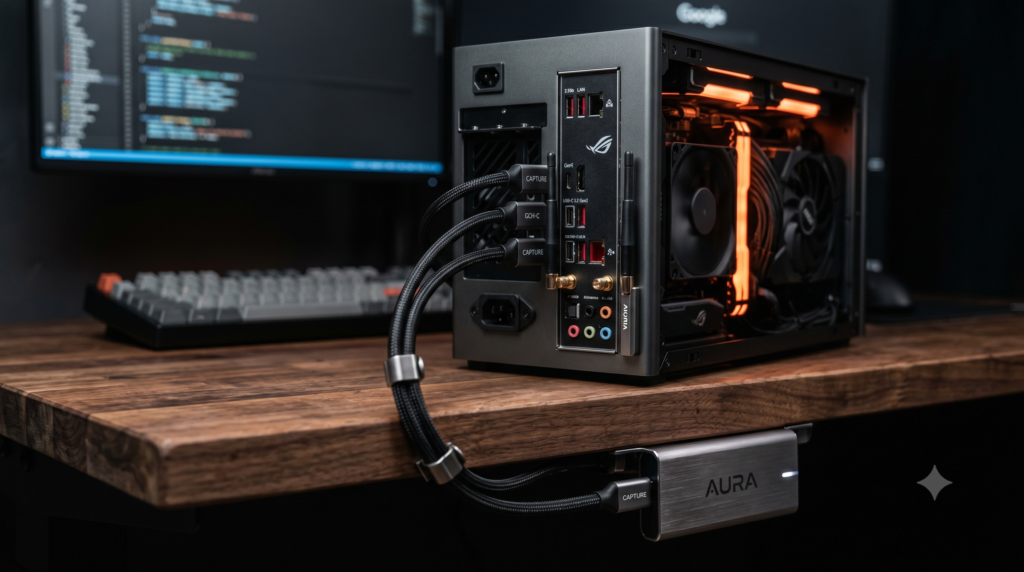
Mini-ITX Streaming Builds: Managing External Peripherals with Limited I/O
Building a Small Form Factor (SFF) PC is an exercise in extreme, calculated compromise. You managed to cram an RTX 4090 and a top-tier CPU into a beautiful 11-liter case that sits cleanly on your desk. Your minimalist battlestation looks like a piece of modern art, completely free from the massive, ugly dimensions of a standard ATX tower.
But then, you decide to start a Twitch stream. Suddenly, the brutal reality of the Mini-ITX motherboard hits you. You need to plug in a Stream Deck, an external DAC, a 4K webcam, a heavy-duty capture card, a wireless mouse dongle, a keyboard, and a ring light. You flip your tiny PC around, only to realize you only have six USB ports, and you are entirely out of PCIe slots.
At Desk & Console, we respect the minimalist philosophy. You built a tiny PC to keep your desk free of clutter. You cannot ruin that aesthetic by covering your desk in messy dongles and thick cables. Here is the definitive, technical guide on how to safely manage bandwidth limits, prioritize your I/O ports, and route premium external hardware under your desk to create a flawless SFF streaming setup.
Bandwidth Routing: Front Panel vs. Rear I/O
When SFF builders run out of rear ports, their first instinct is to plug their 4K webcam or audio interface into the Front Panel USB ports of their case. This is a massive mistake.
Front-panel I/O connects to your Mini-ITX motherboard via a thick internal header cable. In a densely packed, 10-liter Mini-ITX case, this cable is highly susceptible to electromagnetic interference (EMI) from the nearby GPU and PSU. Furthermore, these headers often share a single internal controller chip. If you daisy-chain devices here, it often leads to signal degradation, frame stuttering in OBS, and latency spikes. High-bandwidth streaming gear must always be plugged directly into the rear motherboard I/O or a dedicated Thunderbolt dock.
The Port Prioritization Guide
Because ITX motherboards have extremely limited rear I/O (often just 1x USB-C and 4x USB-A), you must follow a strict hierarchy of what gets a direct connection to the motherboard, and what gets offloaded to an under-desk powered hub. You cannot randomly daisy-chain devices.
🔌 ITX I/O Routing Hierarchy
| Peripheral Type | Where to Plug It In | Why? (The Technical Reason) |
|---|---|---|
| Gaming Mouse Dongle | Motherboard Rear I/O (USB 2.0) | Requires zero-latency polling. Never put on a shared hub. |
| External Capture Card | Motherboard Rear I/O (USB 3.2 Gen 2) | Requires massive uncompressed video bandwidth (10Gbps). |
| 4K Webcam | Motherboard Rear I/O (USB 3.2 Gen 2) | Requires dedicated, uninterrupted video data pathways. |
| Stream Deck & Audio DAC | Externally Powered USB Hub | Low bandwidth; easily handled by a quality external hub. |
| Keyboard & Ring Light | Externally Powered USB Hub | Requires electrical power, but almost zero data bandwidth. |
By moving the high-bandwidth video and zero-latency mouse directly to the rear I/O, you free up the motherboard’s resources. Everything else must be offloaded to a premium, externally powered hub hidden completely out of sight.
The SFF Streaming Hardware Arsenal
To keep your minimalist desk clear of clutter while solving the physical constraints of a Mini-ITX board, you must invest in these specific high-end external solutions.
1. Best External Capture Card: Elgato HD60 X
If you are a dual-PC streamer (using your SFF build as the dedicated streaming rig) or capturing console gameplay, the Elgato HD60 X is your only true high-end option. Unlike older, bulky external boxes, this unit is incredibly slim and matte black, matching the stealth aesthetic of modern ITX cases.
The Zero-Clutter Route: Use heavy-duty, double-sided mounting tape to stick the HD60 X directly to the underside of your desk, right below where your PC sits. Route the HDMI cables from your console/gaming PC directly under the desk lip, completely hiding the capture card from sight while preserving its USB-C connection to your SFF motherboard.
Check Price on Amazon2. Bandwidth Salvation: CalDigit TS4 Thunderbolt 4 Dock
If budget is not an issue and you want the absolute highest-end, no-compromises streaming setup, the CalDigit TS4 is a requirement. It is an industrial-grade aluminum block that solves every single limitation of a Mini-ITX motherboard instantly.
You plug one single Thunderbolt 4 cable into your PC. The dock then provides you with 18 extra ports, including insanely fast 2.5GbE Ethernet, audio in/out, and multiple high-bandwidth USB-A and USB-C ports. You can plug your 4K camera, your Stream Deck, and your audio interface directly into the TS4. It flawlessly manages the data flow, ensuring your motherboard’s internal USB controllers never choke during a high-stakes broadcast.
Check Price on Amazon3. The Under-Desk Manager: Anker 10-Port 60W Powered Hub
If you don’t have Thunderbolt, an Externally Powered USB Hub is your mandatory lifeline. The Anker 60W Data Hub provides 7 high-speed USB 3.0 data ports and 3 dedicated charging ports.
This is where you offload all the “low-bandwidth, high-power” peripherals that would otherwise clog up the back of your pristine SFF case. Mount this hub upside down directly beneath your desk surface. Your Stream Deck, lighting, and mechanical keyboard cables never even have to touch your PC tower, keeping your aesthetic entirely minimalist and your motherboard safe from power overdraw.
Check Price on Amazon4. The Dongle Saver: Logitech G PRO Ecosystem
If you are struggling with limited ports, stop buying peripherals from mismatched brands. The modern SFF builder relies on unified ecosystems. By investing in the Logitech G PRO X Superlight 2 Mouse and a compatible Logitech wireless keyboard (like the G915 TKL or PRO X TKL), you can sync both devices to one tiny LIGHTSPEED receiver.
This instantly frees up a highly coveted USB port on the back of your Mini-ITX motherboard, which can now be dedicated to a high-priority piece of streaming hardware like an audio interface. It’s a brilliant, high-performance hardware hack that reduces desk clutter and frees up vital I/O space without sacrificing a single millisecond of polling rate latency.
Check Price on AmazonFrequently Asked Questions (FAQ)
How to stream on mini ITX without an internal capture card?
Because Mini-ITX motherboards only have one PCIe slot (which is occupied by your GPU), you cannot physically install an internal PCIe capture card like the Elgato 4K60 Pro. You must use an external USB-C capture card (like the Elgato HD60 X) connected directly to a high-bandwidth USB 3.2 Gen 2 or Thunderbolt port on your rear I/O.
Why is my 4K webcam lagging when plugged into my front panel USB?
Front-panel case I/O relies on an internal motherboard header cable that usually maxes out at a shared 5Gbps. This cable is highly susceptible to electromagnetic interference (EMI) in small cases. If you plug a 4K uncompressed webcam and an external capture card into your case’s front panel simultaneously, the internal controller will choke, causing severe frame drops. Always plug high-bandwidth streaming gear directly into the rear motherboard I/O.
What is the best mini ITX limited USB ports solution?
The safest and most aesthetically pleasing solution for an SFF streaming build is dividing your peripherals by bandwidth. Plug high-bandwidth devices (Camera, Capture Card, Mouse Dongle) directly into the motherboard. Plug all low-bandwidth devices (Stream Deck, Keyboard, Ring Light, USB Mic) into an externally powered AC USB Hub hidden under your desk.