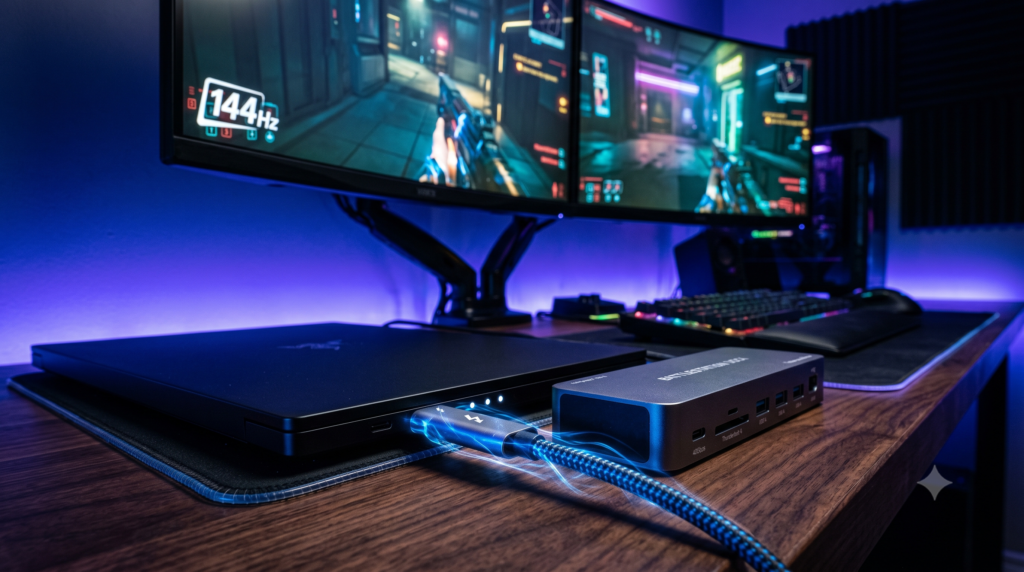
Best Thunderbolt 4 Docks for Gaming Laptops (144Hz Plus Dual Monitor Setups)
Building a high-performance gaming laptop setup requires an uninterrupted 40Gbps data pipeline. Gamers frequently look at best open world rpg console games under 50 dollars for entertainment, but managing desktop replacement hardware demands uncompressed video bandwidth. When you connect high-refresh displays, you need docks that can handle dual 144Hz feeds without stuttering.
Before locking in your desktop replacement layout, evaluate whether your portable rig needs physical alignment upgrades like those discussed in how to mount a heavy gaming laptop to a monitor arm without sagging. Furthermore, exploring options such as best 100w gan chargers for gaming laptops leave your power brick cable managed keeps power delivery streamlined across mobile travel bags.
To maintain clean desk aesthetics, pair your docking architecture with style frameworks detailed in 5 best gaming desks for small rooms tested reviewed for 2026 and match your thermal setup with fans like best alternatives to corsair icue case fans.
Technical Architecture: 40Gbps Bandwidth & PCIe Passthrough
1. Uncompressed 40Gbps Pipeline
Thunderbolt 4 dedicates full PCIe lanes to video and peripheral data, preventing the compression artifacts and refresh rate caps associated with standard USB-C hubs.
2. Dedicated Power Delivery (PD)
High-end docks supply up to 98W to 100W of continuous power charging, keeping laptop batteries stable during intensive gaming sessions.
3. Raw Hardware USB Passthrough
Bypassing software video emulation (DisplayLink) ensures zero input lag on 1000Hz gaming mice and mechanical keyboards.
Curated Setup Guide & Technical Spec Comparison
| Dock Model | Total Ports | Power Delivery | Video Outputs | Best-For Scenario |
|---|---|---|---|---|
| CalDigit TS4 | 18 Ports | Up to 98W PD | Dual DisplayPort / Thunderbolt | Ultimate desktop replacement with maximum port versatility |
| Razer TB4 Chroma | 10 Ports + RGB | 90W PD | Thunderbolt 4 / Downstream DP | Gamer aesthetic setups featuring addressable Chroma lighting |
| Kensington SD5700T | 11 Ports | 90W PD | Dual DisplayPort 1.4 | Enterprise stability and direct under-desk screw mounting |
| Anker 778 Dock | 12 Ports | 100W PD | Built-in DP 1.4 + HDMI 2.1 | Adapter-free native monitor connections and high-wattage charging |
CalDigit TS4 Thunderbolt 4 Dock
The CalDigit TS4 is widely recognized as the definitive benchmark for high-performance docking architecture. Built from a solid block of ridged aluminum that acts as a passive heatsink, the TS4 handles continuous 40Gbps data streams without thermal throttling or dropped signals.
Featuring 18 versatile ports, including 2.5GbE Ethernet and front-facing audio jacks, it easily drives dual 1440p displays at 144Hz while maintaining zero input latency across connected gaming peripherals.
- 18 robust ports provide unmatched connectivity for multi-display workflows
- 2.5GbE Ethernet port ensures lightning-fast local network file transfers and low ping
- Solid aluminum heatsink chassis prevents thermal throttling under peak loads
- Delivers up to 98W Power Delivery to sustain high-end gaming laptops
- Premium engineering commands an enthusiast-tier price investment
- Large power supply brick requires deliberate under-desk placement
Razer Thunderbolt 4 Dock Chroma
For gamers wanting a docking station that matches the aggressive visual aesthetic of a custom RGB battlestation, the Razer Thunderbolt 4 Dock Chroma delivers stellar performance. Encased in matte-black aluminum, it features customizable underglow lighting that syncs directly with your Razer peripherals.
Beyond its visual flair, it provides 3 downstream Thunderbolt 4 ports allowing clean daisy-chaining of high-refresh displays, alongside gigabit ethernet and high-speed USB ports for zero-lag gaming accessories.
- Fully customizable Razer Chroma RGB underglow integrates into gaming ecosystems
- Three downstream Thunderbolt 4 ports enable effortless device daisy-chaining
- 90W power delivery keeps portable gaming rigs charged during heavy use
- Sleek matte-black aluminum finish matches modern gaming laptop chassis
- Requires Razer Synapse software to unlock full RGB lighting customization
- Fewer legacy USB-A ports compared to enterprise-focused docking stations
Kensington SD5700T Thunderbolt 4 Dock
The Kensington SD5700T is engineered for enterprise-grade reliability and rock-solid video stability. If your previous hubs suffered from random screen dropouts or black flickers when alt-tabbing out of games, the SD5700T eliminates those handshake failures instantly.
It provides 11 ports of uncompromised connectivity, supports dual 4K or 144Hz displays, and includes built-in mounting flanges that allow you to screw the unit directly to the underside of your desk for a completely clutter-free workspace.
- Exceptional video connection stability prevents random monitor signal dropouts
- Built-in mounting holes allow clean screw-fixation to desk undersides
- 90W power delivery sustains performance across demanding laptop hardware
- Comprehensive selection of 11 essential workstation ports
- Conservative corporate aesthetic lacks aggressive gaming styling
- Lacks front-facing SD card reader slots for media creators
Anker 778 Thunderbolt 4 Docking Station
Many Thunderbolt docks require expensive USB-C to DisplayPort adapters to connect gaming monitors. The Anker 778 Thunderbolt 4 Docking Station solves this friction by placing native DisplayPort 1.4 and HDMI 2.1 ports directly on the back of the chassis.
Delivering a robust 100W charge, the Anker 778 provides adapter-free connection for high-refresh gaming displays while maintaining uncompromised 40Gbps throughput for all connected USB mice, keyboards, and audio interfaces.
- Native DisplayPort 1.4 and HDMI 2.1 ports eliminate the need for extra video adapters
- High-wattage 100W power delivery keeps power-hungry gaming laptops fully charged
- Full 40Gbps Thunderbolt 4 throughput ensures zero peripheral input lag
- Clean, utilitarian metal enclosure fits professional and gaming environments alike
- Port selection is optimized primarily for video and data rather than legacy media cards
- Power brick is moderately bulky and requires cable management concealment
Frequently Asked Questions
Does a laptop dock cause input lag for gaming?
A cheap USB-C hub will cause severe input lag because it processes video through software emulation (DisplayLink) and chokes your USB controller. A premium Thunderbolt 4 dock causes zero input lag because it taps directly into your laptop’s PCIe lanes and GPU, offering a raw hardware passthrough just like a desktop PC.
Can a Thunderbolt 4 dock run dual 1440p monitors at 144Hz?
Yes, but it requires careful bandwidth management. Thunderbolt 4 provides 40Gbps of total bandwidth. Running dual 1440p monitors at 144Hz consumes roughly 28Gbps, leaving exactly enough room for your gigabit ethernet, webcam, and 1000Hz gaming mouse to operate flawlessly without frame drops.
Why does my screen go black when gaming on a USB-C hub?
Standard USB 3.2 hubs only have 5Gbps or 10Gbps of bandwidth. When you launch a game at 144Hz, the video data instantly exceeds the hub’s physical capacity. The hub’s controller crashes, causing your external monitors to go black or flicker continuously. You must upgrade to a 40Gbps Thunderbolt 4 dock.