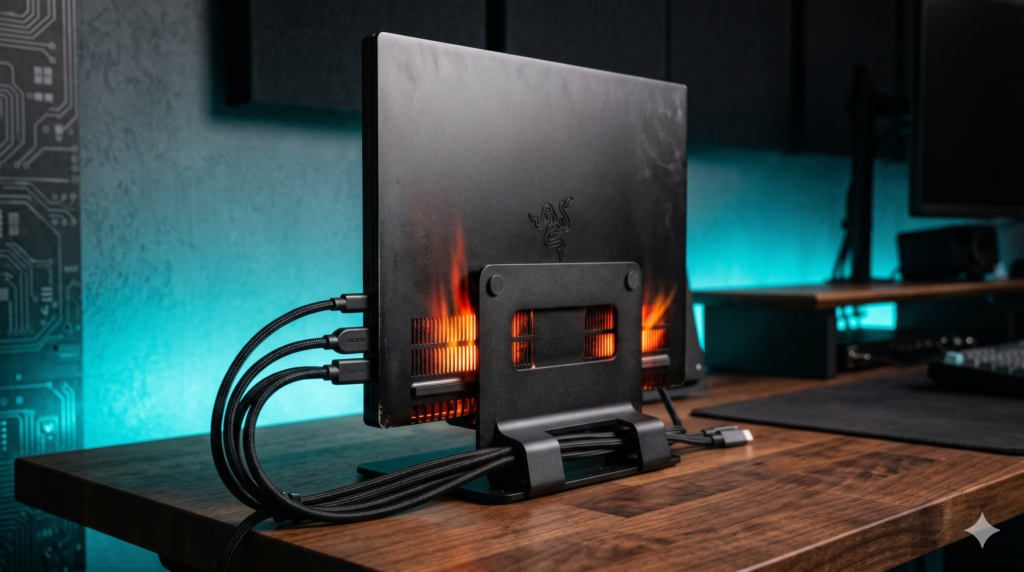
Is It Safe to Game with Your Laptop Closed? Clamshell Mode Thermals Explained
The appeal of a desktop replacement setup is undeniably sleek. You drop your high-performance gaming laptop onto your desk, connect a single interface cable, and launch games on an immersive ultra-wide display. To maintain a pristine, minimalist aesthetic, many creators and gamers fold the laptop screen downward into closed clamshell mode.
While closing the lid conceals wires and clears horizontal surface area, sandwiching a high-wattage CPU and discrete GPU inside a sealed metal chassis traps intense thermal energy. Mainstream hardware reviews evaluate laptops in wide-open configurations, overlooking the physical consequences of closed-lid operation. Setting up a streamlined workstation requires integrating proper vertical airflow dynamics, as detailed in our guide to minimalist desk setup ideas for gamers who work from home.
Furthermore, organizing your peripheral charging and power delivery prevents power strip congestion; review our recommendations for best controller charging docks and setup storage solutions. To mount heavy portable power bricks off the floor, explore our technical breakdown on how to hide massive gaming laptop power bricks under your desk.
Thermal Physics: Airflow Chokes and Radiant Heat Traps
1. Keyboard Deck Air Intake
Many thin-and-light gaming laptops draw secondary cold air downward through keyboard key gaps. Closing the lid seals this upper intake, starving internal fans of airflow and triggering immediate temperature spikes.
2. Radiant Screen Delamination
The aluminum chassis near the rear hinge reaches high temperatures during gaming. When closed, delicate LCD or OLED display panels sit millimeters from this heat source, risking optical adhesive failure and permanent yellow heat rings.
3. Exhaust Re-Circulation Loops
Laying a laptop flat on a desk causes exhausted hot air to pool underneath the chassis. Intake fans ingest this recycled heat, creating a dangerous thermal feedback loop that forces aggressive CPU throttling.
Curated Setup Guide & Technical Spec Comparison
| Hardware Solution | Form Factor & Build | Cooling Mechanism | Workflow Integration | Best-For Scenario |
|---|---|---|---|---|
| OMOTON Vertical Stand | CNC-Milled Aluminum Unibody | Passive Aluminum Heatsink | Vertical Desktop Mount | Maximizing ambient airflow and reclaiming desk space |
| IETS GT500 Turbo Pad | Sealed Plastic & Foam Chassis | 5000 RPM Industrial Centrifugal Fan | Forced-Air Positive Pressure | Flat-lay gaming sessions requiring aggressive temperature drops |
| CalDigit TS4 Dock | Heavy-Duty Aluminum Block | External I/O Heat Offloading | Single 40Gbps Thunderbolt 4 Link | Complete single-cable peripheral and monitor consolidation |
| Kasa Smart Plug Mini | Compact Smart Wall Outlet | BIOS AC Power Trigger | Smartphone Remote Booting | Remote power-on without opening closed laptop lids |
OMOTON Vertical Laptop Stand
When operating a heavy gaming laptop in clamshell mode, laying the device flat on a wooden or glass desktop traps thermal energy against the bottom panel. The OMOTON Vertical Laptop Stand solves this by holding your laptop rigidly upright. This exposes 100% of the aluminum chassis to ambient room air, allowing natural convection to draw heat away from internal components.
Constructed from solid CNC-milled aluminum, the stand acts as a massive passive heatsink while taking up minimal desk real estate. The interior rubberized grips secure your laptop without scratching the finish, ensuring exhaust vents point upward into open air. Pairing this stand with mounting accessories from our guide on how to mount a heavy gaming laptop to a monitor arm without sagging provides even greater workspace flexibility.
Strengths
- Solid aluminum construction acts as a passive thermal heatsink
- Vertical orientation allows hot air to escape upward via natural convection
- Adjustable screw mechanism fits laptops of varying thicknesses securely
- Dramatically reduces horizontal desk footprint for a minimalist workspace
Trade-Offs
- Requires external monitor, keyboard, and mouse peripherals
- Laptops with top-deck intake fans still require adequate hinge clearance
IETS GT500 Turbo Cooling Pad
Standard USB-powered cooling pads with generic LED fans offer negligible thermal improvement. If your workflow requires the laptop to remain flat under a monitor riser or shelf, you must overcome the blocked keyboard intake using positive air pressure. The IETS GT500 Turbo Cooling Pad utilizes an industrial 5000 RPM centrifugal motor housed within a memory-foam airtight seal.
The GT500 forces high-pressure filtered air directly into the laptop’s bottom intake vents, dropping internal CPU and GPU temperatures by up to 15°C under maximum gaming loads. While the fan generates noticeable acoustic noise at peak speeds, it completely neutralizes the thermal penalties of closed-lid flat operation while preventing dust from entering your heatsink fins. For complete mobile charging management, pair this setup with our recommendations for the best 100W GaN chargers for gaming laptops.
Strengths
- Industrial 5000 RPM motor drops operating temperatures by up to 15°C
- Memory foam seal creates positive air pressure directly into chassis intakes
- Built-in dust filtration mesh prevents lint and pet hair from clogging heat pipes
- Enables safe flat-lay clamshell gaming without thermal throttling
Trade-Offs
- High fan speeds produce significant noise comparable to a desktop blower fan
- Requires a dedicated AC wall outlet plug rather than drawing low-power USB bus current
CalDigit TS4 Thunderbolt 4 Dock
Managing multiple monitors, webcams, audio interfaces, and dongles directly plugged into a laptop chassis forces internal USB host controllers to run at peak capacity, generating unnecessary secondary heat. The CalDigit TS4 Thunderbolt 4 Dock offloads all peripheral processing and power distribution to a heavy aluminum docking unit.
By connecting a single 40Gbps Thunderbolt 4 cable, the TS4 delivers up to 98W of continuous charging while driving high-refresh multi-monitor arrays. Crucially for closed-lid setups, the TS4 maintains stable USB controller handshakes, allowing your external keyboard and mouse to reliably wake the sleeping laptop without requiring you to open the lid.
Strengths
- 18 comprehensive ports consolidate all peripheral and display connections into one cable
- Offloads internal USB controller thermal load away from the laptop motherboard
- Delivers up to 98W Power Delivery to charge high-end gaming laptops rapidly
- Maintains rock-solid wake-from-sleep peripheral communication in clamshell mode
Trade-Offs
- Premium enterprise-grade pricing reflects its top-tier component architecture
- Large aluminum power supply brick requires discreet under-desk cable management
Kasa Smart Plug Mini
If your laptop occasionally drops Bluetooth connectivity or fails to wake via USB hubs from a powered-off state, you are normally forced to open the lid to press the physical power button. The Kasa Smart Plug Mini provides an ingenious hardware workaround utilizing motherboard BIOS configurations.
By enabling “Restore on AC Power Loss” in your laptop BIOS and plugging your power brick into the Kasa smart outlet, you can control your laptop power state via your smartphone or voice assistant. Tapping the Kasa app cuts and restores AC power, forcing the motherboard to execute a cold boot without requiring you to touch the laptop chassis.
Strengths
- Allows remote cold-booting of closed laptops via smartphone or voice commands
- Compact single-outlet design does not block adjacent wall socket spaces
- Robust 15A capacity safely handles high-wattage gaming laptop power bricks
- Cost-effective alternative to expensive proprietary docking solutions
Trade-Offs
- Relies on a stable 2.4GHz home Wi-Fi network connection to respond
- Performs a hard AC power toggle rather than a graceful Windows software shutdown
Performance & Gear Hub: Complete Your Setup
Maintaining safe operating temperatures and reliable power delivery is essential for desktop replacement laptops. Explore our complementary technical guides for docking architecture, power brick concealment, and high-wattage charging:
Frequently Asked Questions
Can you game in clamshell mode safely?
Yes, but it depends entirely on your laptop cooling architecture. If your laptop vents heat out the back and pulls air from the bottom (like most thick gaming laptops), clamshell mode is relatively safe when placed in a vertical aluminum stand to maximize airflow. However, if your laptop intakes air through the keyboard deck (like a Razer Blade), closing the lid will choke the fans and trap radiant heat, causing severe thermal throttling and potential hardware damage.
Will closing my gaming laptop melt the screen?
It will not literally melt into a puddle, but sustained radiant heat above 60°C (140°F) trapped between the chassis and the screen can cause the optical adhesive inside the display panel to fail. This results in permanent yellow heat rings around the edges, dead pixels, or irreversible screen delamination. Always check your specific laptop manufacturer documentation regarding closed-lid operation.
Do MacBook Pros have the same closed-lid thermal issues as PC gaming laptops?
Generally, no. Apple Silicon (M-Series chips) runs incredibly efficiently and generates a fraction of the raw wattage heat produced by a dedicated Nvidia RTX gaming laptop GPU. Furthermore, MacBooks exhaust heat exclusively out the rear hinge, not up through the keyboard deck. Running a modern MacBook Pro in clamshell mode is completely safe, though a vertical stand is still recommended for desk aesthetics.