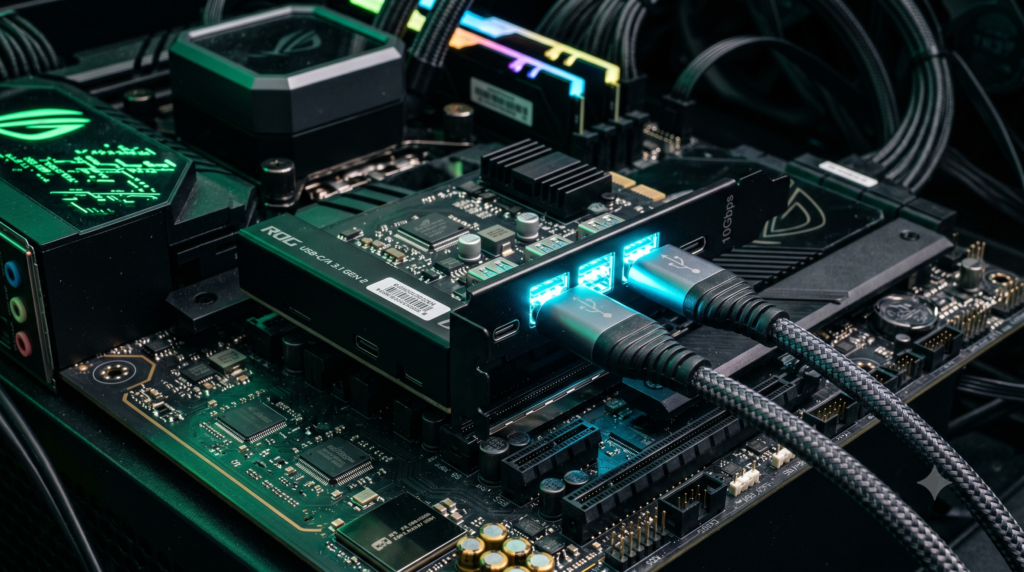
USB Hub vs. Motherboard Direct: Where Should You Plug in a 4K Streaming Camera?
You finally did it. You spent over $200 on an elite 4K streaming webcam like the Elgato Facecam Pro or the Logitech MX Brio. You clamped it perfectly to your monitor, routed the cable beautifully under your desk, and plugged it into a cheap $15 Amazon USB hub along with your gaming mouse and keyboard.
You launch OBS to start your stream, and immediately, chaos ensues. Your 4K camera stutters and drops frames. Your high-end gaming mouse starts skipping across the screen, completely ruining your aim. Your USB microphone starts sounding like a glitchy robot. What happened? You just overloaded your motherboard’s internal USB Root Controller.
At Desk & Console, we analyze the intersection where physical cable management meets internal PC architecture. If you want a flawlessly clean desk setup without sacrificing frame rates or mouse latency, you must understand exactly how motherboard USB bandwidth is shared, and when you absolutely must upgrade to externally powered hubs or dedicated PCIe expansion cards.
The Bandwidth Bottleneck: How Motherboard USB Ports Actually Work
🧠 The USB 3.2 Matrix Explained
When you look at the back of your PC motherboard, you might see 8 or 10 USB ports. You assume they all operate independently. They do not. Motherboards group those physical ports together internally into clusters called “Root Hubs,” which all share a single internal controller chip.
A standard USB 3.0 (now called USB 3.2 Gen 1) controller has a total bandwidth limit of 5 Gbps. An uncompressed 4K webcam running at 60 frames per second will consume almost all of that 5 Gbps pipe by itself. If you plug a 4K camera, a 1000Hz gaming mouse, and a USB microphone into the same physical cluster on the back of your PC, they are all fighting to shove data through a single, over-capacity chip. The controller panics, drops the video frames, and delays your mouse inputs.
When dealing with streaming peripherals, you must understand the physical language of USB generations:
- USB 2.0 (Black Ports – 480 Mbps): Use these only for your keyboard and mouse. High-end gaming mice prioritize polling rate latency, not bandwidth capacity. Keep them completely isolated from video data.
- USB 3.2 Gen 1 (Blue Ports – 5 Gbps): The absolute bare minimum for a single 1080p60 or highly compressed 4K webcam.
- USB 3.2 Gen 2 (Red/Teal Ports – 10 Gbps): The mandatory port for uncompressed 4K streaming cameras and external capture cards.
Signs Your USB Controller is Overloaded
🚨 Diagnosing the Data Choke
If you are experiencing any of the following issues while streaming or gaming, your USB Root Controller is suffocating:
- Camera Freezing in OBS: Your webcam feed drops to 5 frames per second, freezes completely, or continuously disconnects and reconnects mid-stream.
- Mouse Sensor Stutter: In a competitive game like Valorant or CS2, your crosshair randomly stops tracking for a fraction of a second, or your high-polling-rate mouse starts skipping.
- Audio Crackling: Your USB microphone or audio interface begins emitting a robotic, crackling, or “popping” noise during heavy system loads.
- Windows Error Notification: Windows explicitly pops up an alert stating, “USB Controller Resources Exceeded. The controller does not have enough resources for this device.”
The Cable Management Dilemma: Hubs vs. Direct Routing
| Routing Method | Bandwidth Safety | Cable Management Aesthetic |
|---|---|---|
| Motherboard Direct | High (If isolated to its own Root Hub) | Terrible (Stretches tight across the room) |
| Cheap Unpowered Hub | Fatal (Creates massive data traffic jams) | Great (Hides under the desk) |
| High-End Powered Hub | Safe (Pushes data cleanly to one port) | Perfect (Zero desk clutter) |
| Dedicated PCIe Card | Flawless (Unrestricted PCIe lanes) | Varies (Requires active extensions) |
Here is where desk aesthetics clash with technical requirements. You want your PC tower hidden on the floor, far away from your monitors. But premium webcams only ship with 3-foot to 5-foot cables. By the time you cleanly route the webcam cable along your monitor arm and down the desk, the cable is completely out of length.
You cannot use a cheap $10 “passive” extension cord or a gas-station USB hub to bridge the gap. Passive hubs draw all their electricity from the single motherboard port they plug into. A 4K camera sensor is incredibly power-hungry. If it starves for electricity, it shuts off.
The High-Bandwidth Hardware Solutions
To safely bridge the gap between a massive dual-monitor setup and your PC tower without losing 4K bandwidth, you must use one of these four enterprise-grade connectivity solutions.
1. Best for Direct Routing: Cable Matters Active USB 3.0 Extension
If you don’t want to use a USB Hub at all, and you just want to plug your webcam directly into the back of your PC, the cable length is your biggest enemy. If you are using a standing desk or complex monitor arms, a 3-foot factory cable won’t reach.
You absolutely must use an Active USB Extension Cable. The Cable Matters Active line allows you to seamlessly extend a 4K camera by 16.4 feet without a single microsecond of latency or frame-dropping. It guarantees that the massive 4K video packet arrives at the motherboard perfectly intact without requiring a bulky hub on your desk.
Check Price on Amazon2. Best for Cable Management: Anker 10-Port 60W Powered Hub
If you need to consolidate cables under your desk, an Externally Powered USB Hub is mandatory. The Anker 60W Data Hub provides 7 high-speed USB 3.0 data ports (5Gbps each) and 3 dedicated charging ports. Because it relies on a massive 60W wall adapter, your 4K webcam is never fighting your mechanical keyboard for electrical voltage.
Setup Hack: Use double-sided heavy-duty mounting tape to stick this hub upside down under your desk. Route your webcam and microphone cables straight down into the hub, then run the single, long master USB cable from the hub across the floor to a dedicated USB 3.2 Gen 2 port on the back of your motherboard. (Keep your mouse plugged directly into the PC, not the hub!)
Check Price on Amazon3. Best for Multi-Camera Streams: StarTech 4-Port PCIe USB Card
If you are a serious content creator or sim-racer and you are getting the “USB Resources Exceeded” error in Windows, a powered hub will not save you. The physical bandwidth of your motherboard is maxed out. You must physically add more bandwidth lanes to your PC.
The StarTech 4-Port PCIe Card plugs directly into an empty PCIe slot below your graphics card. Unlike cheap $20 expansion cards that share one controller, this card features four independent controller chips. Every single port has its own dedicated 5Gbps lane. Plugging your 4K webcams directly into this card isolates the video data entirely, guaranteeing zero dropped frames during a high-stakes 8-hour stream.
Check Price on Amazon4. The Ultimate End-Game Solution: CalDigit TS4 Thunderbolt 4 Dock
If you are a high-end creator running your stream off a premium laptop (like an M-Series MacBook Pro), or a desktop motherboard equipped with Thunderbolt 4, the CalDigit TS4 is the most powerful piece of connectivity hardware on the consumer market.
It completely bypasses traditional USB limitations. You can plug two 4K displays, a 4K streaming webcam, an audio interface, and a high-speed ethernet cable directly into this massive aluminum block. It handles all the data simultaneously without breaking a sweat, feeding it into your PC through one single, hyper-fast Thunderbolt cable. It is the definition of a zero-compromise streaming battlestation.
Check Price on AmazonFrequently Asked Questions (FAQ)
Why is my webcam dropping frames on a USB hub?
If your webcam drops frames on a USB hub, you are experiencing a bandwidth or power bottleneck. Uncompressed 4K video requires immense data transfer (up to 5Gbps). If you use a cheap, ‘passive’ USB hub that draws power only from the PC, the camera starves for electricity and data, causing severe stuttering. You must upgrade to an externally powered AC hub or plug directly into the motherboard.
Can a 4K webcam cause my gaming mouse to lag?
Yes. Motherboard USB ports share internal “Root Controllers.” If you plug a 4K streaming camera into the same vertical column of USB ports as your 1000Hz (or 4000Hz) gaming mouse, the massive data flow from the camera will choke the controller, causing your mouse’s polling inputs to skip, lag, or disconnect. Always plug your mouse into a dedicated CPU-linked port (usually at the very top near the PS/2 port) and your camera into a separate chipset port further down.
What is an active USB extension cable?
Standard “passive” USB cables physically lose data signal after 6 to 9 feet. An “active” USB extension cable has a built-in signal booster chip that regenerates the data packet mid-flight. If you are routing a webcam cable down a monitor arm and under a desk to your PC, an active cable is mandatory to prevent stream latency and camera disconnects.