How to Fix USB Ground Loop Noise in Gaming Laptop Audio Setups
You’ve meticulously crafted your gaming desk. You have a massive ultrawide monitor, a Thunderbolt dock hiding all your cables, and a set of premium desktop studio monitors. You drop your gaming laptop onto your desk, plug in the dock cable, and suddenly—it begins.
A maddening, high-pitched static buzzing sound erupts from your speakers. When you move your mouse, the pitch changes. When you launch a heavy 3D game, the static morphs into a screaming, robotic whine. You assume your expensive speakers are broken, but they aren’t. Your battlestation has fallen victim to the most infuriating electrical issue in PC building: The USB Ground Loop.
At Desk & Console, we focus on the structural physics of your battlestation. If you want to permanently eliminate gaming laptop audio static through a dock or a direct connection, you must physically break the electrical loop using specialized external hardware. Here is the deep technical breakdown of why this noise occurs, how to test for it, and the acoustic gear required to silence your setup permanently.
The Physics of the Ground Loop Explained
⚡ The Shared Ground Plane
A “Ground Loop” occurs when two pieces of hardware are plugged into different power sources (e.g., your laptop charger and your powered speakers), but they are linked together by an audio or video cable. Because the wall outlets have slightly different voltage potentials, the excess electrical noise attempts to “equalize.”
It cannot travel back through the wall, so it takes the path of least resistance: the thin ground wire inside your analog audio cable. This rogue electrical current travels through your speakers, which physically amplify the interference, resulting in that horrible, whining buzz.
This issue is exponentially worse when using a Thunderbolt Dock or connecting to an external monitor, as you introduce even more power sources into the same shared electrical loop.
How to Diagnose the Buzz (The Isolation Test)
Before you buy any hardware, you must isolate the exact source of the loop. Follow these three steps:
🔬 The Battlestation Isolation Test
- Step 1 (The Power Test): Unplug your gaming laptop’s power brick from the wall so the laptop runs entirely on battery power. Did the buzzing instantly stop? If yes, you have a massive ground loop between the charger and the speakers.
- Step 2 (The Monitor Test): Plug the charger back in. Now, unplug the HDMI or DisplayPort cable connecting your laptop to your external monitor. Did the buzzing stop? If yes, the ground loop is traveling from your monitor’s power supply, through the video cable, and into your audio jack.
- Step 3 (The Mouse Test): Rapidly move your gaming mouse in circles on the desktop. If you hear a scratching/whining noise that perfectly matches your hand movements, you have “USB Packet Noise.” Your motherboard is failing to shield the audio chip from the data traffic of your high-polling-rate gaming mouse.
The Verdict: If you answered “Yes” to any of these, your internal shielding has failed. You must move the audio processing outside the noisy laptop chassis entirely.
The Audio Hardware Fixes
To cure ground loop interference while actively improving the audio quality of your setup, you must implement one of these external hardware solutions to serve as an electrical firewall.
1. The Ultimate Desktop Cure: FiiO K11 Desktop DAC & Amp 🏆 Best Overall
If you want to permanently kill ground loop buzz while simultaneously upgrading your audio to studio-grade quality, the FiiO K11 External DAC is the absolute gold standard for desk setups.
Instead of plugging your speakers or headphones into the laptop’s 3.5mm jack, you plug the FiiO K11 into your laptop (or dock) via USB-C. Because the digital USB signal carries zero analog interference, the audio arrives perfectly clean. The FiiO then uses an ultra-premium amplifier to push crystal-clear sound to your speakers.
Check Price on Amazon2. The Audiophile Powerhouse: Schiit Hel Gaming DAC/Amp
If you are a hardcore gamer running high-impedance headphones (like Beyerdynamics) and a dedicated microphone, you need a heavy-duty audio interface. The Schiit Hel is a premium, USA-made DAC and Amplifier designed specifically to dominate the gaming audio space.
It eliminates ground loops by utilizing an external power supply (plugging directly into the wall for pure, clean power) while taking the digital audio signal from your laptop via a separate USB data cable. This total separation of power and data creates a massive, pristine soundstage. It features a stunning oversized volume knob and an integrated microphone input with its own analog gain control, replacing your motherboard’s audio entirely.
Check Price on Amazon3. The Digital Decoupler: iFi iDefender+
For streamers and audio professionals, finding out your expensive USB interface is buzzing is a nightmare. This happens because standard USB cables carry both Data and Power. The Power line is infected with your laptop’s GPU noise.
The iFi iDefender+ is a specialized, medical-grade diagnostic tool. You plug it into your laptop, and plug your USB audio interface into it. It instantly detects ground loops and physically cuts the noisy ground connection from the computer. It is a brilliant, hyper-specialized tool that stops USB packet noise (the scratching sound when you move your mouse) dead in its tracks without altering the audio quality.
Check Price on Amazon4. The Quick Analog Fix: BESIGN 3.5mm Ground Loop Isolator
If you are on a strict budget, or you are running inexpensive desktop speakers (like the Logitech Z313) where buying a $100 DAC doesn’t make financial sense, the BESIGN 3.5mm Ground Loop Isolator is the fastest, cheapest fix.
You simply plug this small cylindrical device inline between your laptop’s audio jack and your speakers’ auxiliary cable. It acts as an electrical dam, immediately killing the high-pitched buzzing. Warning: Because it uses cheap internal transformers, it can slightly reduce the heavy bass frequencies in your music. It is a fantastic budget fix, but audiophiles should strictly rely on the FiiO or Schiit DACs above.
Check Price on Amazon5. Battlestation Routing: KabelDirekt Shielded RCA/Aux Cables
A flawless battlestation requires running all your cables perfectly tight together along monitor arms or inside under-desk raceways. If you bundle a cheap, thin auxiliary audio cable alongside a heavy 330W laptop power cord, you will introduce massive static.
To safely route audio cables in a dense PC setup, you must buy Heavily Shielded Audio Cables. KabelDirekt constructs their cables with a pure copper core wrapped in a dense metal braiding that acts as a Faraday cage. This blocks all external electromagnetic interference, allowing you to zip-tie your audio cables directly next to power cables without picking up any static.
Check Price on AmazonThe ‘Battlestation’ Cable Routing Strategy
Under-Desk DAC Mounting
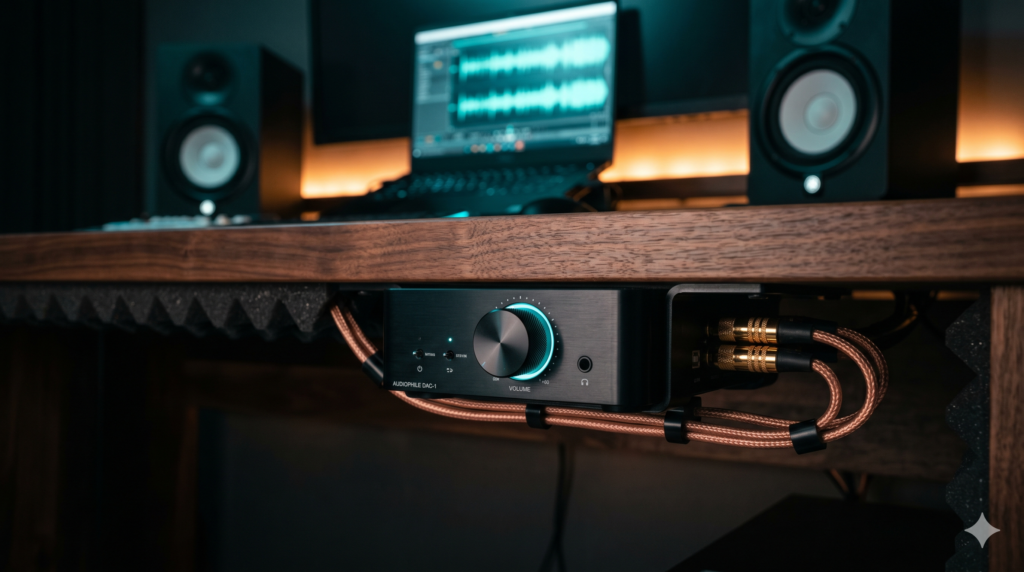
Don’t let the USB DAC clutter your desk. Buy a roll of heavy-duty 3M VHB double-sided tape and mount the FiiO DAC upside-down, directly underneath the front lip of your desk. This keeps the tactile volume knob right at your fingertips while hiding the RCA cables running to your speakers completely out of sight.
The 90-Degree Power Rule
Never zip-tie an audio cable parallel to an AC power cable. If an audio cable must cross a power cable under your desk, ensure they cross each other at a strict 90-degree perpendicular angle. Parallel cables share electromagnetic bleed; perpendicular crossing minimizes the contact area and preserves signal silence.
A premium desk setup should sound as clean as it looks. You cannot fix internal motherboard interference with software. By abandoning the noisy internal 3.5mm jack and offloading your audio processing to the FiiO K11 External DAC (or the mighty Schiit Hel)—wired perfectly with Shielded Cables—you physically break the ground loop and ensure your speakers deliver nothing but flawless, zero-static audio.
Frequently Asked Questions (FAQ)
Why is there a buzzing sound when my laptop is plugged into a monitor?
This is a classic ‘Ground Loop.’ Your gaming laptop charger and your monitor power cable both connect to the wall ground. When you connect the laptop to the monitor via DisplayPort or HDMI, you create a second, overlapping ground path. Electrical interference from the GPU and power supply bleeds across this loop and exits through your speakers as a high-pitched buzzing or static noise.
How do I fix gaming laptop audio static through a dock?
Laptop motherboards have terrible internal audio shielding. When plugged into a heavy-duty USB dock, the electrical traffic from dual monitors, ethernet, and peripherals overwhelms the motherboard’s audio chip. You must bypass the internal audio entirely by plugging an External USB DAC (Digital-to-Analog Converter) into your dock to process the sound externally in a shielded metal chassis.
Does a 3.5mm ground loop isolator ruin audio quality?
Yes, cheap 3.5mm analog isolators use small audio transformers to break the electrical connection. While they eliminate the buzzing, they heavily compress the audio signal, often cutting out deep bass and dulling high frequencies. For high-end studio monitors, a USB Ground Loop Isolator (like the iFi iDefender+) or an external DAC is the only lossless solution to preserve complete audio fidelity.