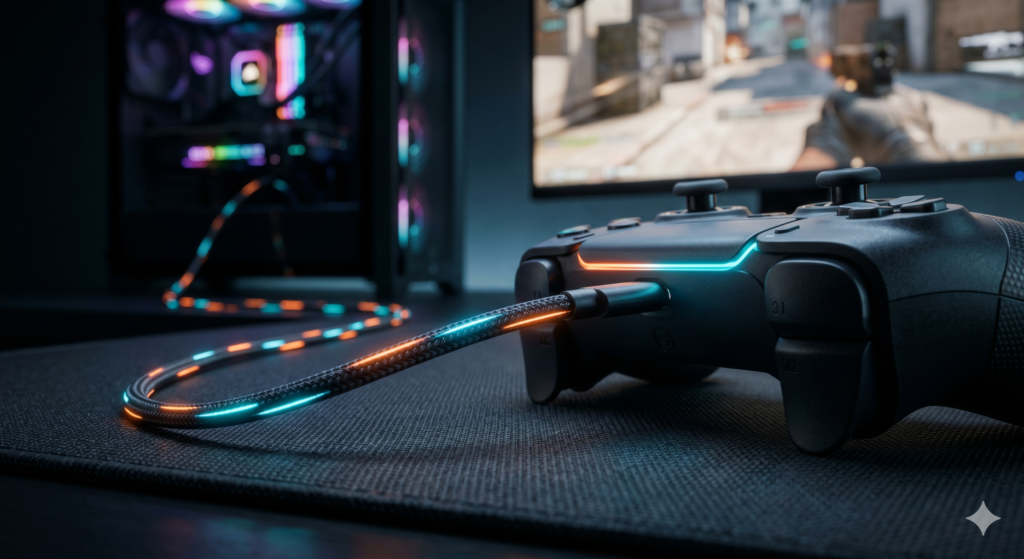
How to Connect a Scuf Controller to PC Without Input Lag
You just dropped premium cash on a SCUF controller to dominate your lobbies in Call of Duty: Warzone, Apex Legends, or Fortnite. The digital tap triggers feel amazing, and the back paddles are perfect. But when you plug it into your PC, something feels terribly wrong. Your crosshairs feel “heavy,” your movement feels floaty, and you are losing gunfights you know you should have won.
You are suffering from input lag. Input lag (measured in milliseconds) is the delay between you pressing a button on your SCUF and the action happening on your gaming monitor. In fast-paced competitive shooters, a 10ms to 20ms delay is the difference between life and death.
At Desk & Console, we build zero-latency setups. In this guide, we are going to show you exactly how to connect your SCUF Reflex, Instinct, or Envision to your PC to achieve an incredibly fast, esports-grade 1ms response time.
1 The 0ms Setup: Proper Wired Connections
The absolute fastest way to connect a SCUF to your PC is via a wired USB connection. However, most gamers make two fatal mistakes when plugging their controller in:
- Mistake 1: Using a “Charging” Cable. Cheap gas station cables or old phone cables only have the internal pins required to carry power, not data. They will cause your controller to drop inputs or disconnect randomly. You must use a high-bandwidth Data Sync Cable.
- Mistake 2: Plugging into the Front Panel. The USB ports on the front of your PC case share a hub with your motherboard, which adds inherent processing delay. Always plug your SCUF directly into the high-speed (red or blue) USB ports on the rear I/O panel of your motherboard.
2 The Esports Secret: Overclocking Your Scuf
Did you know Windows naturally caps the “polling rate” of your USB ports? By default, your PC checks for controller inputs 250 times per second (250Hz), resulting in about 4-5ms of input lag. Pro players bypass this by overclocking their controllers.
- Connect your Scuf via a premium USB data cable.
- Download a trusted polling rate tool like LordOfMice (hidusbf).
- Find your controller in the software list and change the polling rate from “Default” to 1000Hz.
- Click “Install Service” and unplug/replug your controller.
Your PC is now checking for inputs 1,000 times a second, dropping your controller delay down to an invisible 1ms response time.
Steam tries to act as a “middleman” between your controller and your game, which causes noticeable delay. Open Steam, right-click your game, select Properties > Controller, and change the drop-down to “Disable Steam Input”. This forces the game to read your SCUF’s raw inputs directly!
3 Fixing Wireless Lag: The Bluetooth Dilemma
If you absolutely must play wirelessly, you need to understand why Bluetooth lags on PCs. The Bluetooth chip built into most PC motherboards is often weak and buried behind metal components, causing severe signal interference. Upgrading to a dedicated, front-facing USB Bluetooth 5.3 Adapter bypasses your motherboard’s weak signal and provides a rock-solid, low-latency connection for your Scuf.
Best Gear for a Lag-Free Scuf PC Setup
To eliminate latency and ensure your button presses register instantly, here are the top-rated connectivity tools available on Amazon right now.
SCUF Envision Pro Wireless PC Controller
If you haven’t bought your Scuf yet, stop looking at the PlayStation or Xbox variants. The SCUF Envision Pro was designed from the ground up strictly for PC gamers. It completely eliminates the need for annoying third-party software like DS4Windows.
Most importantly, it comes with Corsair’s proprietary Slipstream Wireless 2.4GHz Dongle. Instead of relying on laggy Bluetooth, this controller communicates with your PC via a dedicated radio frequency. This delivers a sub-1ms wireless connection that rivals the fastest wired setups on the market, alongside mechanical mouse-click switches for instantaneous firing.
✓ What We Love
- Slipstream 2.4GHz dongle provides zero-lag wireless gaming
- Built natively for PC (No DS4Windows required)
- Mouse-click mechanical triggers and buttons
✕ Keep in Mind
- Only works on PC (Not compatible with PS5 or Xbox consoles)
- Relies on Corsair iCUE software for mapping buttons
Anker Nylon USB-C to USB-A Data Cable (10ft)
If you are serious about competitive gaming, this is the only cable you should be using. The Anker Nylon USB-C Cable is a high-speed data transfer cable that easily supports 1000Hz overclocking without dropping packets.
At 10 feet long, it gives you plenty of slack to lean back in your gaming chair without putting tension on the controller port. The double-braided nylon exterior ensures it won’t tangle, fray, or break under the stress of intense gaming sessions.
✓ What We Love
- High-speed data pins guarantee 0ms latency
- Incredibly durable double-braided nylon
- 10ft length provides perfect desk mobility
✕ Keep in Mind
- Make sure your PC motherboard has an open USB-A (rectangular) port on the back
TP-Link UB500 Bluetooth 5.3 Nano USB Adapter
If your wireless Scuf controller randomly disconnects, or if you feel a heavy delay when aiming, your PC’s native Bluetooth is failing you. The TP-Link UB500 is a cheap, brilliant fix. It utilizes Bluetooth 5.3 technology, which is specifically optimized for low-latency peripherals.
Simply plug this tiny nano receiver into a front USB port on your PC case (to ensure a clear line of sight to your controller), disable your motherboard’s Bluetooth in Windows settings, and pair your Scuf. Your wireless delay will vanish instantly.
✓ What We Love
- Bluetooth 5.3 provides an ultra-stable, low-latency connection
- Plug-and-play setup for Windows 10/11
- Incredibly cheap fix for frustrating wireless lag
✕ Keep in Mind
- You must manually disable native PC Bluetooth in Device Manager to avoid signal conflict
Frequently Asked Questions (FAQ)
Do I need DS4Windows to use a Scuf Reflex controller on PC?
If you are using a PlayStation-based Scuf (like the Scuf Reflex), many PC games (like Xbox Game Pass titles) will not recognize it natively. You will need to run a program like DS4Windows to trick your PC into thinking the PlayStation controller is actually an Xbox controller, or simply rely on Steam Input.
Does Bluetooth cause input lag for gaming?
Yes. Standard Bluetooth connections can introduce anywhere from 10ms to 25ms of input delay, which is highly noticeable in fast-paced games like Call of Duty or Rocket League. If you want to play wirelessly on PC without lag, you should buy a controller that uses a dedicated 2.4GHz USB receiver (like the Scuf Envision Pro).
Is it safe to overclock a controller on PC?
Yes. “Overclocking” a controller via software like LordOfMice simply tells your computer’s USB port to communicate with the controller more frequently (changing it from 250Hz to 1000Hz). It will not physically damage your Scuf controller in any way, though it only works when plugged in via USB.
In competitive gaming, hardware should never be the reason you lose a gunfight. By ditching weak Bluetooth connections, using a premium data-transfer cable, and overclocking your polling rate, you can unlock the true potential of your Scuf controller and secure a massive advantage over the competition.