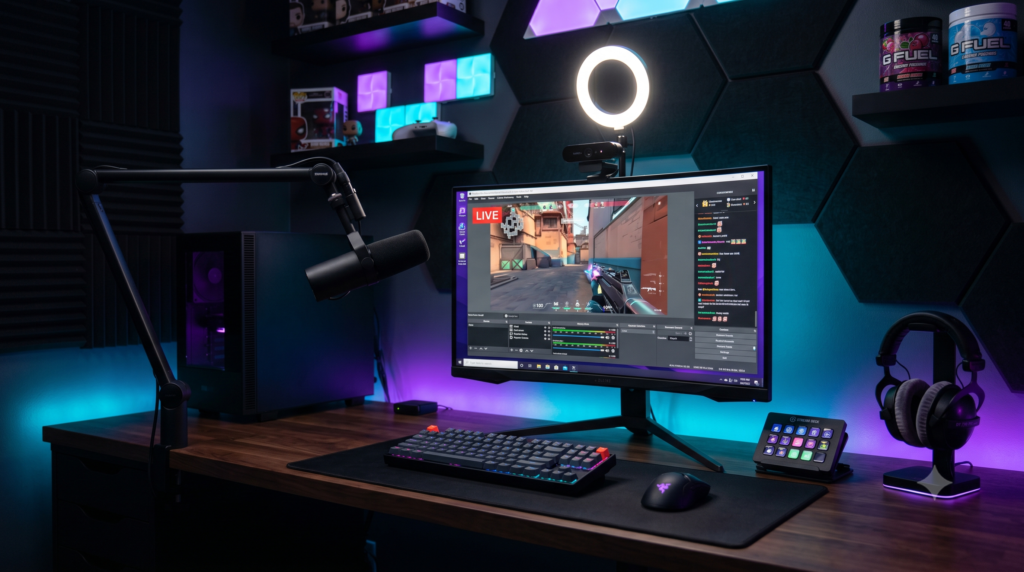
The Ultimate Budget Streaming Setup: Under $500 Complete Guide
If you watch your favorite streamers on Twitch or YouTube, it is easy to get discouraged. They sit behind $3,000 mirrorless cameras, speak into $400 Shure SM7B microphones, and use elaborate two-PC setups. It creates a massive illusion that you need thousands of dollars just to start streaming.
This is a complete myth. In 2026, budget streaming technology has evolved to the point where viewers can barely tell the difference between a $50 microphone and a $400 microphone once simple audio filters are applied in OBS Studio.
At Desk & Console, we believe anyone should be able to hit “Go Live” with a professional studio aesthetic. We have meticulously constructed the ultimate budget streaming loadout. For less than $500 total, you will have studio-grade audio, crisp HD video, flawless lighting, and game capture. Here is the blueprint.
Estimated Setup Cost
*Based on Amazon averages for Audio, Video, Lighting, IEMs, and a Capture Card. If you only play PC games, skip the Capture Card and this setup costs just $230!*
1. The Audio: Don’t Buy a Condenser Mic
Most beginners buy a cheap “Condenser” microphone like the Blue Yeti or Snowball. Condenser mics are extremely sensitive and will pick up your keyboard clicks, dog barking, and AC unit. For streaming in an untreated bedroom, you MUST buy a Dynamic Microphone. Dynamic mics naturally reject background noise by only picking up sound directly in front of the capsule.
FIFINE AM8 Dynamic USB/XLR Microphone
The FIFINE AM8 has completely disrupted the audio market. It is a dynamic microphone with a built-in pop filter, meaning it naturally rejects your keyboard clicks and provides a deep, warm “radio host” sound signature right out of the box.
The best part? It features both USB and XLR connections. You can plug it directly into your PC via USB today, and if you ever upgrade to a fancy audio interface (like a GoXLR or Elgato Wave XLR) years from now, you can use the XLR port. It also features a sleek RGB ring to pop on camera and a silent tap-to-mute button.
✓ What We Love
- Dynamic capsule naturally blocks out background noise
- Dual USB/XLR connections for incredible future-proofing
- Tap-to-mute sensor is silent (no loud click on stream)
✕ Keep in Mind
- Included desk stand is too short; you must buy a boom arm (see step 2)
2. The Essential Add-on: Boom Arm
InnoGear Heavy Duty Mic Arm
If you leave your new FIFINE microphone on its included desk stand, it will pick up the violent thumping vibrations of every single keystroke you make. You must get the microphone off the desk. This ultra-affordable InnoGear boom arm clamps to the back of your desk, bringing the microphone directly to your mouth so you can lower the gain and eliminate background noise completely.
Buy InnoGear Boom Arm3. The Video: The Industry Standard
Logitech C920x Pro HD Webcam
You do not need a 4K webcam. Most viewers watch Twitch streams on their phones, and your facecam is going to be shrunken down into a tiny square in the corner of your gameplay anyway. The Logitech C920x is the most legendary, reliable, and widely used webcam in Twitch history.
It outputs a beautiful, crisp 1080p signal. The glass lens captures sharp details, and the autofocus is highly reliable. In the next step, we will show you how to make this $60 webcam look like a $500 DSLR camera using cheap lighting.
Buy Logitech C920x4. The Lighting: The Cheat Code
Neewer 2-Pack Dimmable LED Video Lights
Here is the reality of streaming: A $60 webcam with great lighting looks infinitely better than a $1,000 camera in a dark room. When a webcam doesn’t have enough light, it raises the ISO (digital exposure), causing your video to look grainy, blurry, and laggy.
Instead of buying an expensive Elgato Key Light, grab this Neewer 2-Pack USB LED set. Place one light on the left side of your monitor and one on the right. Angle them at your face, and your $60 Logitech webcam will instantly look like a high-end professional broadcast by completely eliminating harsh shadows.
Buy Neewer Light Kit5. The Sound: The Pro Earbud Meta
Linsoul KZ ZS10 Pro In-Ear Monitors (IEMs)
If you look closely at your favorite top-tier Twitch streamers, you will notice almost none of them wear massive, bulky gaming headsets anymore. They all use IEMs (In-Ear Monitors).
Why? Bulky headsets ruin your hair on camera and cause painful clamping fatigue after 4 hours of streaming. The KZ ZS10 Pro IEMs wrap around the back of your ear, sitting practically invisible on camera. For $50, they pack 5 audio drivers per ear, delivering a wider soundstage and better footstep audio than headsets that cost triple the price. Plug them directly into your PC and you are good to go.
Buy KZ ZS10 Pro IEMs6. The Capture Card (For Console Streamers)
AVerMedia Live Gamer Mini (GC311)
*Note: If you are streaming PC games directly from your gaming PC, skip this step! OBS Studio captures your screen natively for free.
If you want to stream console exclusives (like Spider-Man 2 on PS5 or Zelda on Nintendo Switch) to your Twitch channel, you must buy a capture card. While Elgato cards often cost $150+, the AVerMedia Live Gamer Mini is the ultimate budget workhorse that does the exact same job.
It takes the HDMI signal from your console, passes a zero-lag signal to your gaming monitor, and sends a pristine 1080p 60FPS copy to your laptop or PC via USB to broadcast directly to OBS.
Buy AVerMedia Capture CardFrequently Asked Questions (FAQ)
Do I need a capture card to stream on PC?
If you are playing a PC game and streaming from that exact same PC (a single-PC setup), you do not need a capture card. Software like OBS Studio captures your screen directly for free. You only need a capture card if you are streaming from a console (PS5/Xbox/Switch) or if you are using a dedicated two-PC streaming setup.
What is the most important piece of streaming gear?
Your microphone. Audio is scientifically proven to be more important for viewer retention than video quality. A viewer will stay and listen to an entertaining streamer with a blurry webcam, but they will instantly click off a 4K stream if the microphone is echoing or buzzing.
Can I stream on a laptop?
Yes! As long as your laptop has a dedicated GPU (like an NVIDIA RTX 3060 or 4060) and a modern processor, it can easily handle streaming to Twitch or YouTube. Simply plug a USB hub into your laptop to attach all of your new budget gear (webcam, mic, lights) and run OBS Studio.