You bought a 144Hz or 240Hz monitor, plugged it in, and it doesn’t feel any smoother than your old one. That’s a really common situation, and it’s rarely a faulty monitor. This guide takes you from the quick settings fix to the less obvious causes, in the order most likely to solve it.
Check this first: is it actually stuck?
Plenty of high refresh monitors come out of the box running at 60Hz, and Windows won’t always pick the highest rate on its own. So before you swap cables or reinstall anything, look at the setting. It’s the fix more often than you’d expect.
- Open Settings > System > Display > Advanced display.
- If you have more than one screen, pick the right one under “Choose a display”.
- Open Choose a refresh rate and select the highest number your monitor supports, like 144Hz or 240Hz.
- Click Keep changes when Windows asks.
One detail to watch: Microsoft marks some rates in that list with an asterisk. Those don’t work at your current resolution, and picking one makes Windows change the resolution to reach it.
If only 60Hz shows up in the list
Windows only lists rates that your monitor, cable, port and graphics driver can all handle together. If 144Hz isn’t there, one of those four is holding you back. Work down this table.
| Check | What to look for | Fix |
|---|---|---|
| The monitor itself | Its spec sheet or box lists the maximum refresh rate, and sometimes which port supports it | If it says 60Hz, no setting will change that |
| The port you used | Some monitors only reach full refresh rate on DisplayPort, or on one specific HDMI port | Check the manual and switch ports |
| The cable | An old or cheap cable may not carry enough bandwidth | Try the cable that came in the box, or a certified one |
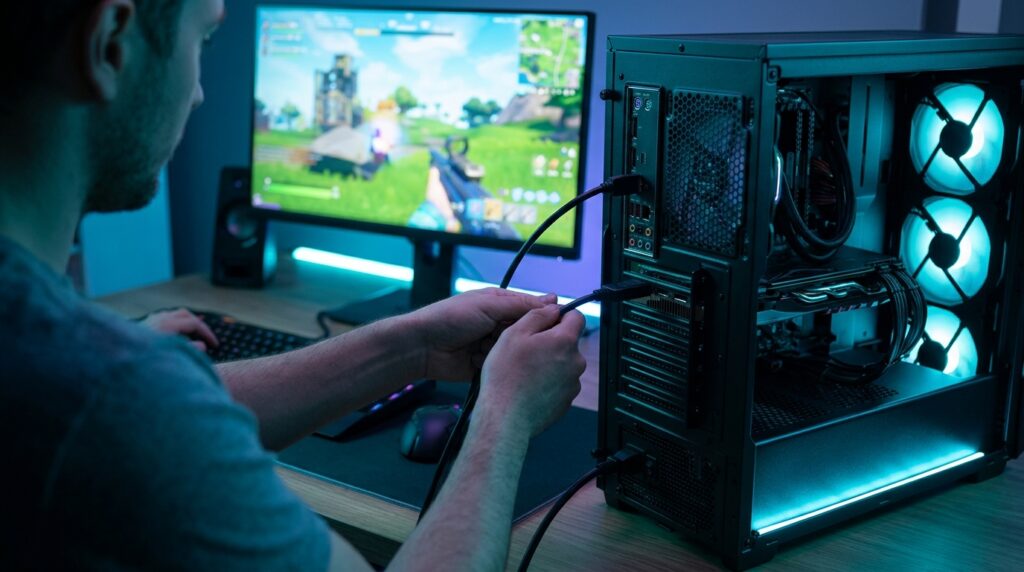
| Where it’s plugged in on the PC | On a desktop, the motherboard’s video ports use the CPU’s graphics, not your graphics card | Plug into the ports on the graphics card itself |
| The graphics driver | In Device Manager, “Microsoft Basic Display Adapter” means no proper driver is installed | Install the driver from NVIDIA, AMD or Intel |
Check the monitor’s own menu
Some monitors have settings in their on-screen menu that affect the refresh rate, like an overclock option or a DisplayPort version setting. Older DisplayPort modes can cap what the monitor reports to Windows. If your manual mentions these, set them to the newest option, then go back to Advanced display.
Games still feel like 60Hz?
- Check the in-game setting. Some games have their own refresh rate or frame cap. Set it to match your monitor or turn the cap off.
- Look at your frame rate. A 144Hz screen only looks smoother if your PC is producing more than 60 frames a second. If you’re stuck around 60fps, it’s a performance problem, not a monitor one. Our stuttering guide covers how to check.
- Variable refresh rate helps. Microsoft notes that many games use VRR automatically on displays that support it, matching the refresh rate to the game.
How we checked
Sources and limits (checked 4 November 2026)
- The settings path, the asterisk note and the VRR note come from Microsoft’s own support page on changing the refresh rate.
- The driver and “Microsoft Basic Display Adapter” check comes from GeekRewind’s and iTechGuides’ walkthroughs of Microsoft’s guidance.
- We haven’t tested specific monitors for this guide. Your monitor’s manual is the final word on which port and cable reach its full refresh rate.
If the cable is the problem: two cheap fixes
1. VESA-Certified DisplayPort 1.4 Cable
If your monitor’s high refresh rate needs DisplayPort, a certified DisplayPort 1.4 cable is an inexpensive way to rule the cable out. Look for VESA certification on the listing and buy a length that reaches without stretching, as longer runs are more likely to cause trouble.
2. Ultra High Speed HDMI 2.1 Cable
If you use HDMI, an Ultra High Speed certified cable supports HDMI 2.1 features. It also suits a PS5 or Xbox Series X on a 120Hz screen. It only helps if both the monitor port and the graphics card port support the higher rate.
Frequently asked questions
Why is my 144Hz monitor only showing 60Hz?
Usually because Windows is still set to 60Hz. Go to Settings > System > Display > Advanced display and pick the higher rate. If it isn’t listed, check the port, the cable and the graphics driver.
Do I need a DisplayPort cable for 144Hz?
It depends on the monitor. Some only reach their full refresh rate on DisplayPort, and others support it on HDMI too. The monitor’s manual says which ports support which rates.
Why does Windows put an asterisk next to some refresh rates?
Microsoft uses it to mark rates that don’t work at your current resolution. Choosing one makes Windows change the resolution.
Is my monitor plugged into the right port?
On a desktop with a graphics card, plug the monitor into the ports on the card, not the ones on the motherboard, which use the processor’s graphics.
Can a bad driver lock my monitor to 60Hz?
Yes. If Device Manager shows Microsoft Basic Display Adapter, Windows doesn’t have the proper graphics driver. Install it from NVIDIA, AMD or Intel.