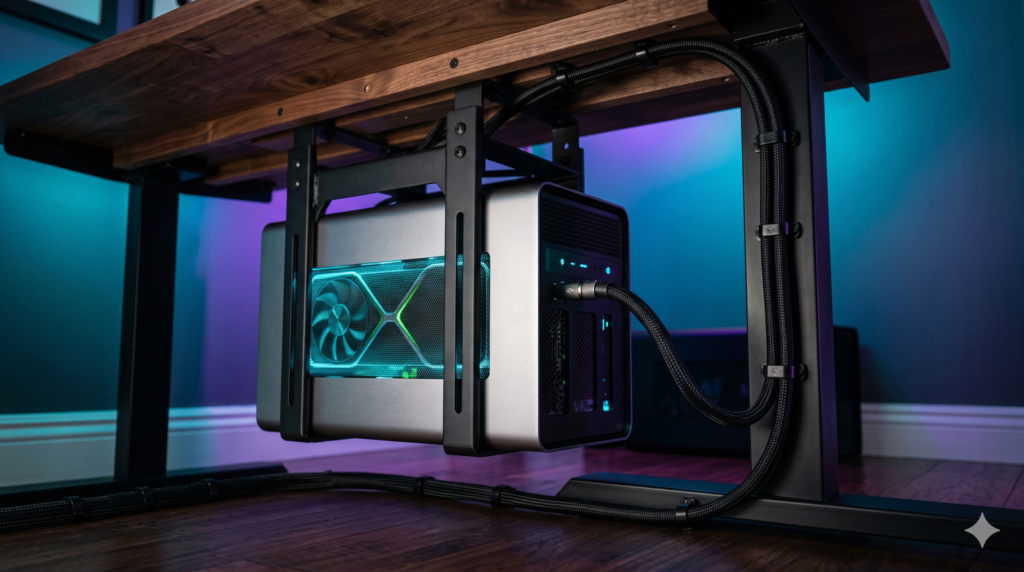
Are eGPU Enclosures Worth the Desk Space? (Minimalist Setup Guide)
The “One-Cable Dream” is incredibly alluring. By day, you travel with a razor-thin, lightweight premium ultrabook (like a Razer Blade Stealth, Dell XPS 13, or an Intel Evo laptop). It weighs nothing and the battery lasts all day. But when you get home, you want to game. You drop it on your desk, plug in a single Thunderbolt cable, and suddenly the raw power of a desktop RTX graphics card surges into your system.
This is the magic of the External GPU (eGPU). But the dream comes with a harsh physical reality that mainstream tech reviewers ignore. When you unbox an eGPU, you realize you have just purchased a massive, loud, ugly metal box the size of a mini-fridge. Placing it on top of your pristine desk completely destroys the minimalist aesthetic you were trying to achieve.
At Desk & Console, we treat battlestations as premium architectural spaces. You do not have to stare at an ugly metal box to get desktop-class gaming frames. To achieve a minimalist eGPU desk setup, you must understand the physics of Thunderbolt data degradation, invest in “Active” cabling, and physically suspend the hardware out of sight. Here is the technical blueprint.
The Bandwidth Bottleneck: PCIe Lanes & Performance Loss
Before you commit to an eGPU, you must understand the performance ceiling. An eGPU does not give you 100% of the graphics card’s raw power. It is physically restricted by the cable.
⚡ The Thunderbolt 3/4 Data Highway
A desktop motherboard connects its GPU using a massive 16-lane PCIe Gen 4 slot. Thunderbolt 3 and Thunderbolt 4 are restricted to just 4 lanes of PCIe Gen 3. This means an eGPU only has 40Gbps of total bandwidth (with roughly 32Gbps allocated purely for PCIe data).
Because you are stuffing a 16-lane GPU into a 4-lane pipe, an eGPU will lose roughly 10% to 15% of its maximum performance compared to a desktop PC. Furthermore, if you try to route the video signal back into your laptop’s internal screen, you clog the pipe in both directions, resulting in a 20% to 30% performance drop. You must always plug your external gaming monitor directly into the back of the eGPU enclosure.
Active vs. Passive Thunderbolt 4 Cables (Crucial for Routing)
If you want to know how to hide an eGPU under a desk, the answer lies in the cable. To reach from the bottom of your desk to your laptop, you need a cable that is at least 2 meters (6.6 feet) long. But you cannot use just any cable.
| Cable Technology | Max Distance for 40Gbps | Result on 2-Meter Route |
|---|---|---|
| Passive Thunderbolt Cable | 0.8 Meters (2.6 Feet) | Drops to 20Gbps (Severe Stuttering) |
| Active Thunderbolt 4 Cable | 2.0 to 3.0 Meters (6.6 to 9.8 Feet) | Flawless 40Gbps Data Stream |
A “Passive” cable is just raw copper wire. Over a long distance, the 40Gbps data signal degrades and falls apart. An Active Thunderbolt 4 Cable contains tiny signal-boosting microchips built directly into the connector heads. It receives the data, amplifies the signal mid-flight, and guarantees a flawless 40Gbps connection over long distances. If you are mounting an eGPU under your desk, an Active cable is a mandatory purchase.
The Stealth eGPU Hardware Arsenal
To safely offload 15 pounds of hot, high-voltage hardware from your desk surface, you must invest in structural, industrial-grade mounting gear and premium data routing.
1. The Mandatory Lifeline: Cable Matters [Active] TB4 Cable 🏆 Essential
If you are planning to hide an eGPU, this is the most important purchase you will make. The Cable Matters Active Thunderbolt 4 Cable (2m) is fully Intel-certified to push the maximum 40Gbps bandwidth limit required by external graphics cards.
Because it is 2 meters long, you can secure the eGPU under your desk, route this cable elegantly along the spine of a monitor arm, and have it snake effortlessly down to your laptop. It also supports 100W Power Delivery (PD), meaning this one single cable will power your GPU data stream, feed video to your monitors, and keep your laptop fully charged.
Check Price on Amazon2. The Stealth Bracket: VIVO Heavy Duty Under-Desk Mount
Leaving an eGPU on the floor exposes it to dust, pet hair, and accidental kicks that could sever the Thunderbolt connection mid-game. You must mount it to the underside of your desk. The VIVO Heavy Duty Under-Desk PC Mount is universally trusted by PC builders for this exact task.
The straps and metal bracket are fully adjustable, meaning it perfectly grips the odd, rectangular dimensions of enclosures like the Razer Core X or AKiTiO Node. Most importantly, the VIVO mount uses an open-strap design rather than a solid metal box, ensuring that the massive side-intake fans of your eGPU are completely unobstructed to pull in ambient cooling air.
Check Price on Amazon3. The Desktop-Class Standard: Razer Core X Aluminum Enclosure
When it comes to housing a full-sized desktop GPU, the Razer Core X is the undisputed king of eGPU enclosures. Crafted from a massive, CNC-machined block of aluminum, it is heavy, dense, and built to absorb the intense thermal radiation of high-end graphics cards.
Its minimalist, matte-black aesthetic is beautiful, but its footprint is massive. Weighing nearly 15 lbs with a GPU installed, it dominates desk space. However, its rigid, rectangular shape and lack of gaudy external plastic protrusions make it the absolute perfect candidate for sliding into a heavy-duty steel under-desk mounting bracket.
Check Price on Amazon4. The Ultra-Compact Alternative: Sonnet Breakaway Puck
If the idea of mounting a 15-pound metal box under your desk sounds exhausting, but you still need to play AAA games on your thin-and-light laptop, the Sonnet eGPU Breakaway Puck is a spatial miracle.
Sonnet realized that putting a massive desktop card inside an enclosure defeats the purpose of a portable setup. The Puck is a highly specialized, pre-built eGPU. You cannot upgrade the graphics card inside it later, but the tradeoff is an incredibly tiny, silent box. You don’t even need an under-desk mount for this; you can simply tuck it behind your desktop monitor, keeping your minimalist aesthetic completely intact without needing any drills or brackets.
Check Price on AmazonStealth Mounting Guide: How to Hide an eGPU Under Your Desk
Mounting an eGPU under your desk requires careful thermal planning. If you do it wrong, the GPU will suffocate and crash mid-game. Follow these steps precisely.
Airflow Diagnostics (Never Mount Sideways)
Look at your eGPU enclosure. One side has a massive mesh grille (where the GPU fans pull cold air in). The back has a fan (where the hot air exhausts). You cannot mount an eGPU sideways against the wood of your desk. If you block the mesh side panel, the card will instantly thermal throttle. You must mount the enclosure vertically in the VIVO straps so both side panels are exposed to open air.
Exhaust Routing
Do not mount the eGPU directly above your knees. It will constantly blow 150°F (65°C) exhaust heat onto your legs while gaming. Mount the VIVO bracket to the far left or far right back-corner of your desk, ensuring the rear exhaust fan is pointing away from your seating position.
The Direct DisplayPort Connection
Crucial Performance Tip: To get maximum frame rates out of an eGPU, you must plug your gaming monitors directly into the back of the eGPU enclosure itself (using DisplayPort cables). Do not run the video signal back down the Thunderbolt cable to your laptop screen. Running the video back to the laptop consumes double the bandwidth and causes a massive 20%+ performance drop.
External GPUs do not belong on top of a premium desk. By pairing the massive power of the Razer Core X with a heavy-duty VIVO Under-Desk Mount and the crucial bandwidth of an Active Thunderbolt Cable, you achieve the ultimate ‘Sleeper’ setup: a pristine, empty desk that secretly houses the graphical horsepower of a high-end desktop gaming tower.
Frequently Asked Questions (FAQ)
How to hide an eGPU under a desk safely?
Because eGPU enclosures like the Razer Core X or AKiTiO Node weigh over 14 lbs with a graphics card installed, you cannot use standard wire baskets or double-sided tape. You must use a heavy-duty steel under-desk PC mount. Bolt the bracket directly to a solid wood desk frame, suspend the eGPU enclosure within the metal straps, and route a 2-meter Active Thunderbolt 4 cable up to your laptop to bypass the short factory cable.
What is an active Thunderbolt 4 cable for an eGPU?
A “passive” Thunderbolt cable is just raw copper wire. It physically loses its ability to push 40Gbps of data if it is longer than 0.8 meters (2.6 feet). An “Active” Thunderbolt 4 cable contains tiny signal-boosting microchips in the connector heads, allowing it to regenerate the 40Gbps signal over distances of 2.0 to 3.0 meters without dropping frames, ensuring flawless data delivery to an under-desk eGPU.
Do eGPUs lose performance compared to a desktop?
Yes. Due to the Thunderbolt 3/4 bottleneck (which limits data transfer to just 4 PCIe lanes), an eGPU loses roughly 10% to 15% of its maximum frame-rate performance compared to being plugged directly into a desktop motherboard. Crucial Note: This performance loss increases to 20%+ if you route the video signal back to your laptop’s internal screen. To minimize performance loss, you must plug your external gaming monitor directly into the back of the eGPU enclosure.