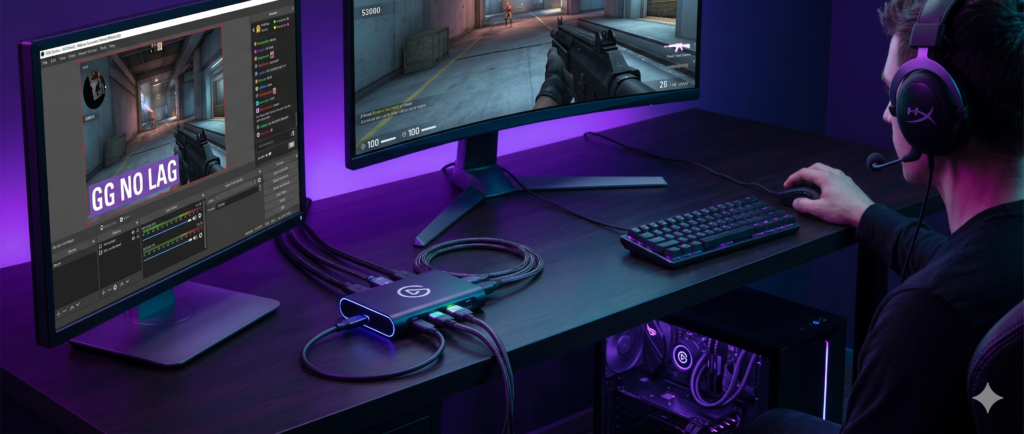
Why is My Stream Lagging? Best Capture Cards to Offload CPU Usage
You’ve got the perfect overlay, your mic sounds incredibly crisp, and your gameplay is buttery smooth on your monitor. But when you look over at OBS Studio, you see the dreaded red text: “Encoding Overloaded.” On Twitch, your viewers are complaining that your stream looks like a stuttering slideshow.
Stream lag is the ultimate momentum killer for content creators. If your internet upload speed is solid, the problem almost always boils down to a lack of system resources. When you game and encode video on the exact same PC, your CPU and GPU are fighting a brutal turf war for processing power.
At Desk & Console, we help creators step up their production value. If adjusting OBS settings hasn’t fixed your lag, it’s time to physically offload the heavy lifting. In this guide, we’ll explain exactly how capture cards work, debunk a massive streaming myth, and show you the best capture cards to build a lag-free dual-PC or console setup.
The Single-PC Myth: Do Capture Cards Fix Lag?
Let’s address the most common misconception in the streaming world: “If my PC is lagging, buying a capture card will take the load off my CPU.”
This is entirely false. A capture card does not have an onboard video encoder for streaming to Twitch. If you plug a capture card into a single-PC setup (where you game and stream on the same machine), your PC’s processor still has to do 100% of the hard work to compress the video via x264 or NVENC and send it to the internet.
A capture card’s only job is to capture an external video signal and bring it into your computer as a camera source.
If you only have one PC and can’t afford a dual setup, a capture card won’t fix your lag. Instead, change your OBS Encoder settings from x264 (CPU) to NVENC H.264 (NVIDIA GPU). Modern NVIDIA cards have dedicated streaming chips that handle encoding with almost zero impact on your game’s frame rate. Also, run OBS as an Administrator so Windows prioritizes it!
The Solution: Dual-PC & Console Streaming
So, how do capture cards actually fix stream lag? They allow you to completely separate the gaming workload from the streaming workload. You do this in two ways:
- Dual-PC Setup: You game on your powerful “Gaming PC,” and send an HDMI cable out to a capture card plugged into a second (usually older or cheaper) PC. PC #1 uses 100% of its power for gaming. PC #2 uses 100% of its power strictly to run OBS and encode the stream.
- Console to PC Streaming: You game on your PS5 or Xbox Series X, and run an HDMI cable into a capture card plugged into your PC/Mac. Your console handles the heavy gaming graphics, and your PC effortlessly handles the stream encoding.
The Best Capture Cards for Streaming
To pull off a seamless Dual-PC or Console setup without restricting your gaming monitor’s frame rate, you need a modern capture card with high-bandwidth passthrough. Here are the top-rated cards on the market.
Elgato 4K X (USB 3.2 Gen 2)
Released to match the massive bandwidth needs of modern high-refresh-rate gaming, the Elgato 4K X is the ultimate external USB capture card. Utilizing massive USB 3.2 Gen 2 bandwidth, it allows you to capture raw 4K60 or 1080p240 footage flawlessly.
Most importantly for PC and PS5 gamers, it supports HDMI 2.1 VRR Passthrough. This means you can play competitive shooters on your main monitor at blazing fast 144Hz+ refresh rates without screen tearing, while the capture card silently sends a pristine, uncompressed feed to your streaming PC’s OBS software.
✓ What We Love
- Flawless HDMI 2.1 VRR and HDR10 passthrough
- Plug-and-play over USB-C (Works great on Mac & PC)
- Ultra-low latency preview in OBS
✕ Keep in Mind
- Requires a 10Gbps USB-C port on your streaming PC
- Premium price point
AVerMedia Live Gamer 4K 2.1 (GC575)
If you are building a dedicated desktop streaming PC and want zero cable clutter, an internal PCIe card is the way to go. The AVerMedia Live Gamer 4K 2.1 slots directly into your motherboard, eliminating USB bottlenecks entirely. This allows for absolute zero-latency video processing.
It is fully equipped with HDMI 2.1 ports, meaning it is perfectly optimized for the newest consoles and high-end gaming rigs. It effortlessly passes through 4K144 HDR and is the weapon of choice for top-tier Twitch Partners and YouTube gaming channels who refuse to compromise their in-game experience.
✓ What We Love
- Internal PCIe connection means zero USB bandwidth issues
- Unrestricted HDMI 2.1 passthrough (4K144Hz support)
- Customizable RGB lighting on the card chassis
✕ Keep in Mind
- Requires a free PCIe x4 slot on your streaming PC motherboard
- Cannot be used with laptops/MacBooks
Elgato HD60 X
Let’s be realistic: Twitch limits video output to 1080p 60FPS anyway. If you don’t need to capture native 4K video, there is no reason to spend top dollar. The highly acclaimed Elgato HD60 X remains the best-selling capture card on the market for a reason.
It captures incredibly crisp 1080p60 video while still allowing you to pass through a 4K60 or 1440p120 signal to your main gaming monitor. It features Variable Refresh Rate (VRR) support, ensuring your gameplay never screen-tears while the stream looks perfectly smooth. It’s the ultimate bridge for a budget dual-PC or console setup.
✓ What We Love
- Incredible value for standard 1080p60 streamers
- Supports VRR to prevent screen tearing
- Highly reliable software and OBS integration
✕ Keep in Mind
- Cannot capture actual 4K footage (limits at 4K30)
- Lacks modern HDMI 2.1 ports
Frequently Asked Questions (FAQ)
Why does OBS say “Encoding Overloaded”?
This error means your CPU or GPU is maxed out and cannot compress the video fast enough to upload it to the streaming server. This results in skipped frames, audio desync, and stream lag. To fix it on a single PC, you must lower your in-game graphics settings, cap your frame rate, or switch your OBS encoder to NVENC (if you have an NVIDIA GPU).
Does a capture card reduce CPU usage on a single PC?
No. This is the biggest myth in streaming. A capture card simply captures video and sends it via USB or PCIe to your motherboard. Your CPU or GPU still has to run the OBS encoding software to broadcast that video to the internet. To truly offload CPU usage, the capture card must be connected to a dedicated secondary streaming PC.
Internal vs. External capture cards: Which is better?
Internal capture cards (PCIe) are better for dedicated desktop streaming PCs because they offer higher bandwidth and lower latency. External capture cards (USB-C) are highly recommended for most people because they are portable, plug-and-play, and can easily be used to stream from gaming laptops, MacBooks, and consoles.
Stream lag is frustrating, but hardware offloading is the ultimate cure. Whether you are capturing a PS5 or linking up a dual-PC rig to take the strain off your main processor, investing in a high-quality capture card ensures your audience gets the premium, stutter-free viewing experience they deserve.